
Step 1: Create a Facebook App
- Go to developers.facebook.com.
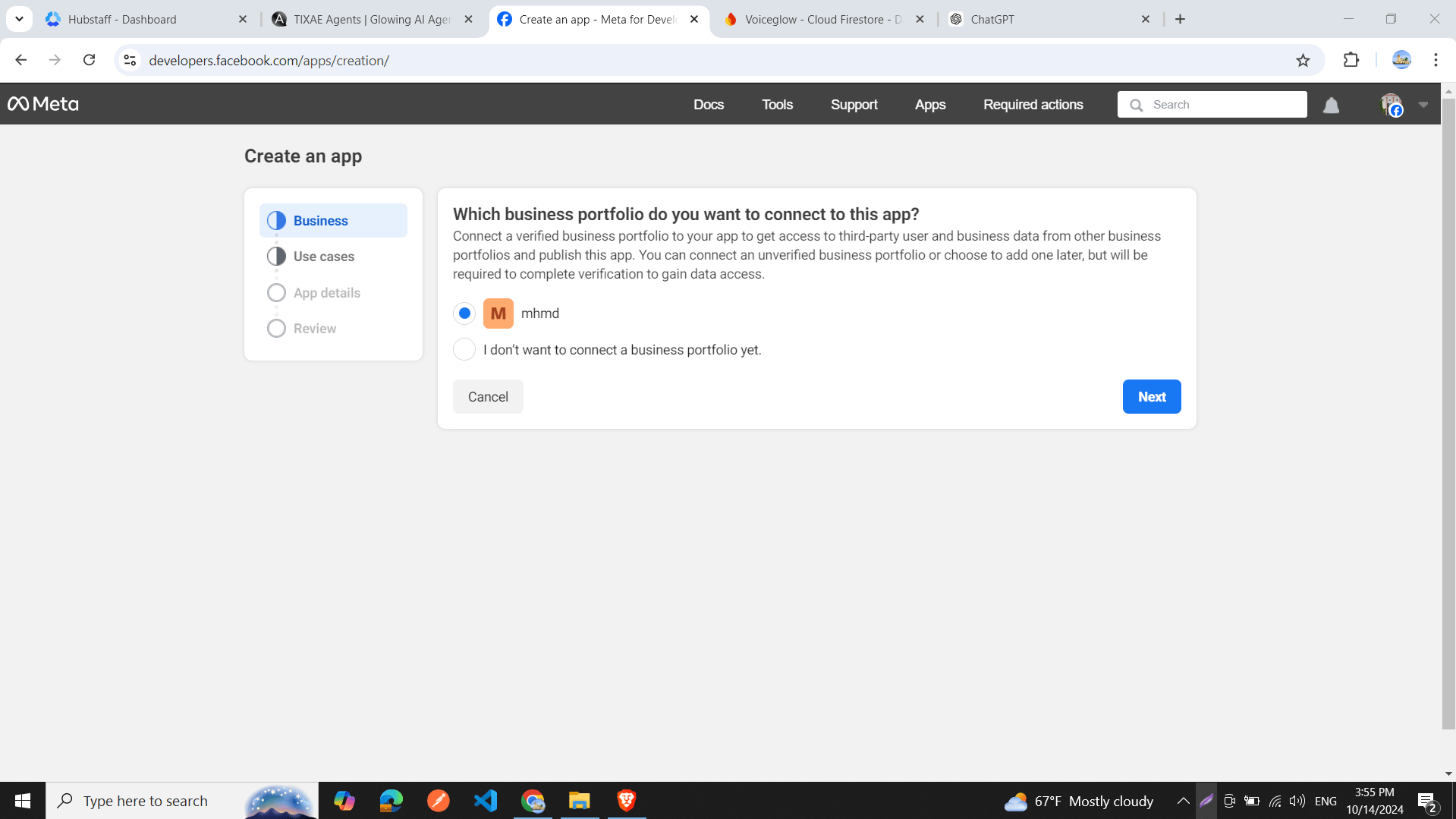
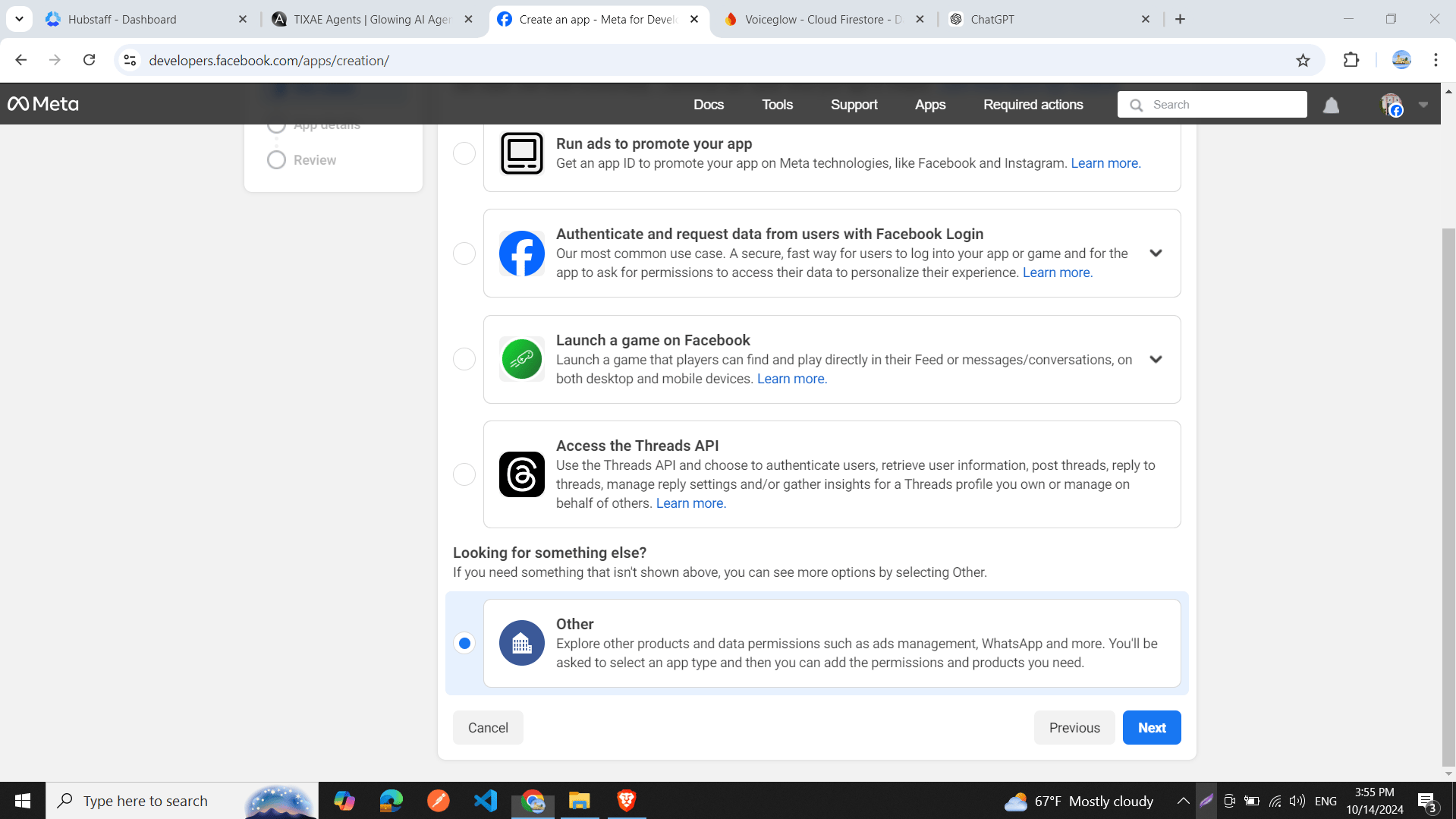
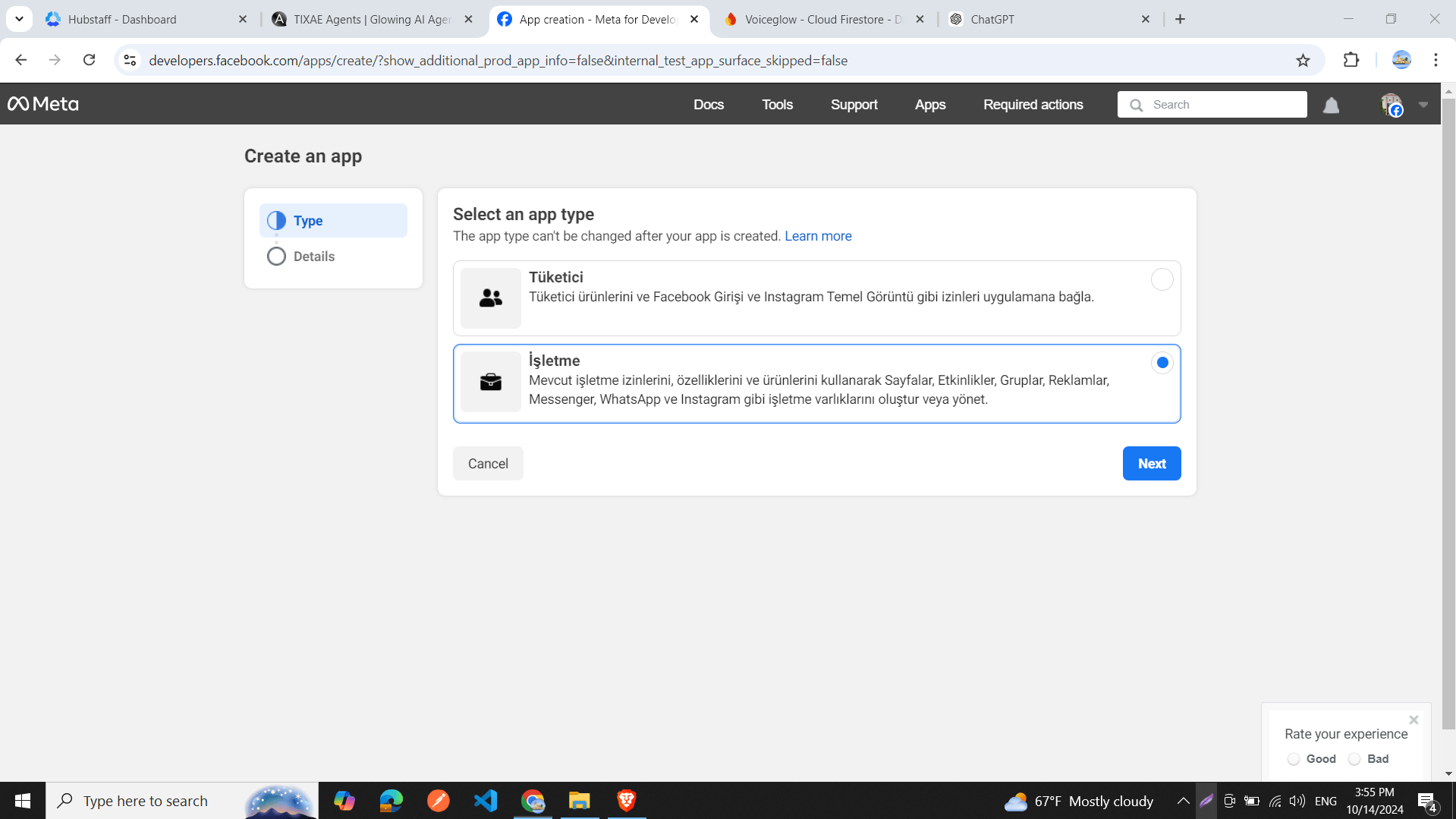
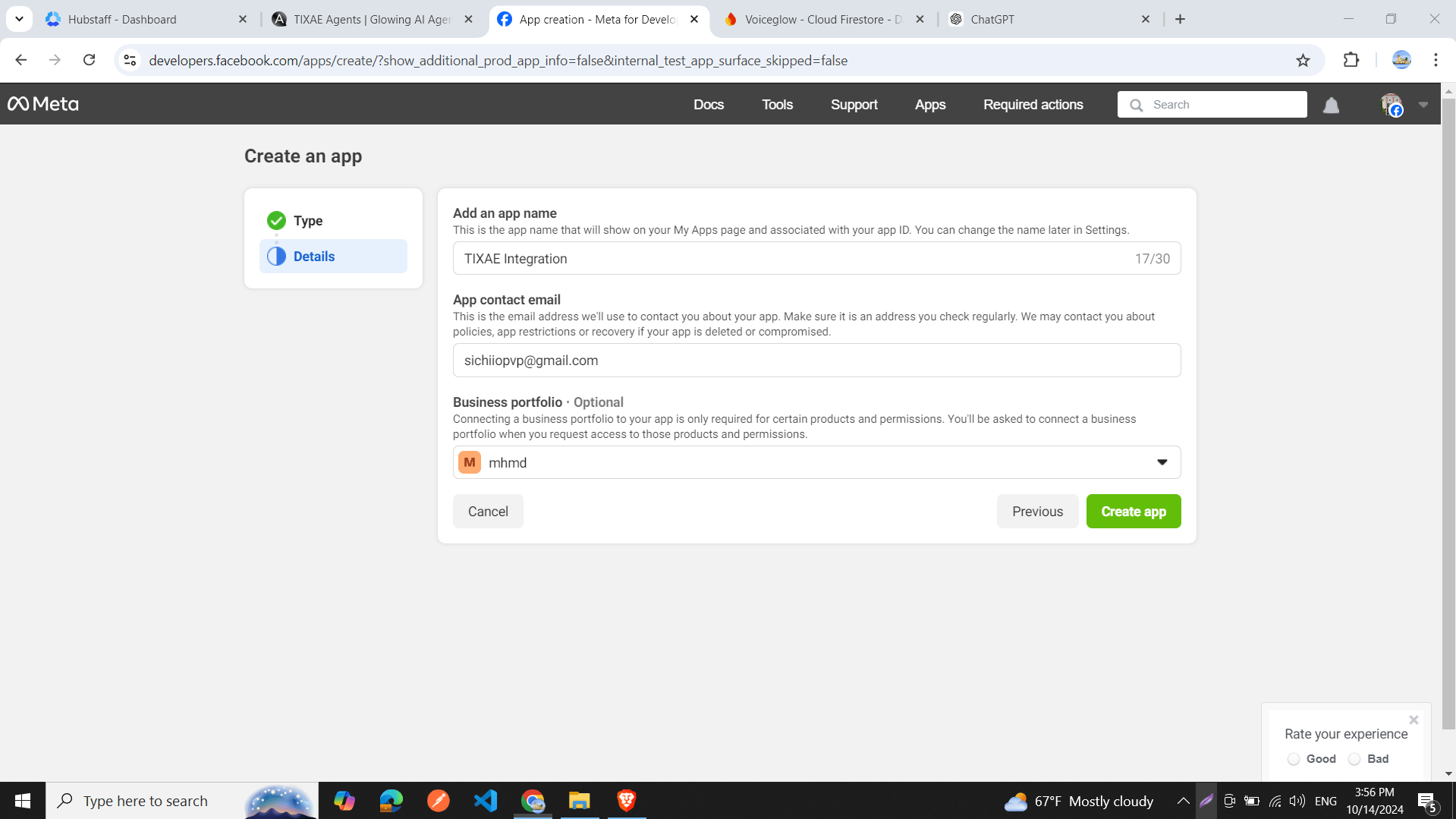
- Create a new app:
- Select the business portfolio you want to connect the app to and click “Next”.
- Choose “Other” as the product type and click “Next”.
- Select “Business” as the app type and click “Next”.
- Provide a name for your app and an app contact email.
- Choose the business portfolio.
- Click the green “Create App” button.
Step 2: Set Up WhatsApp in Your App
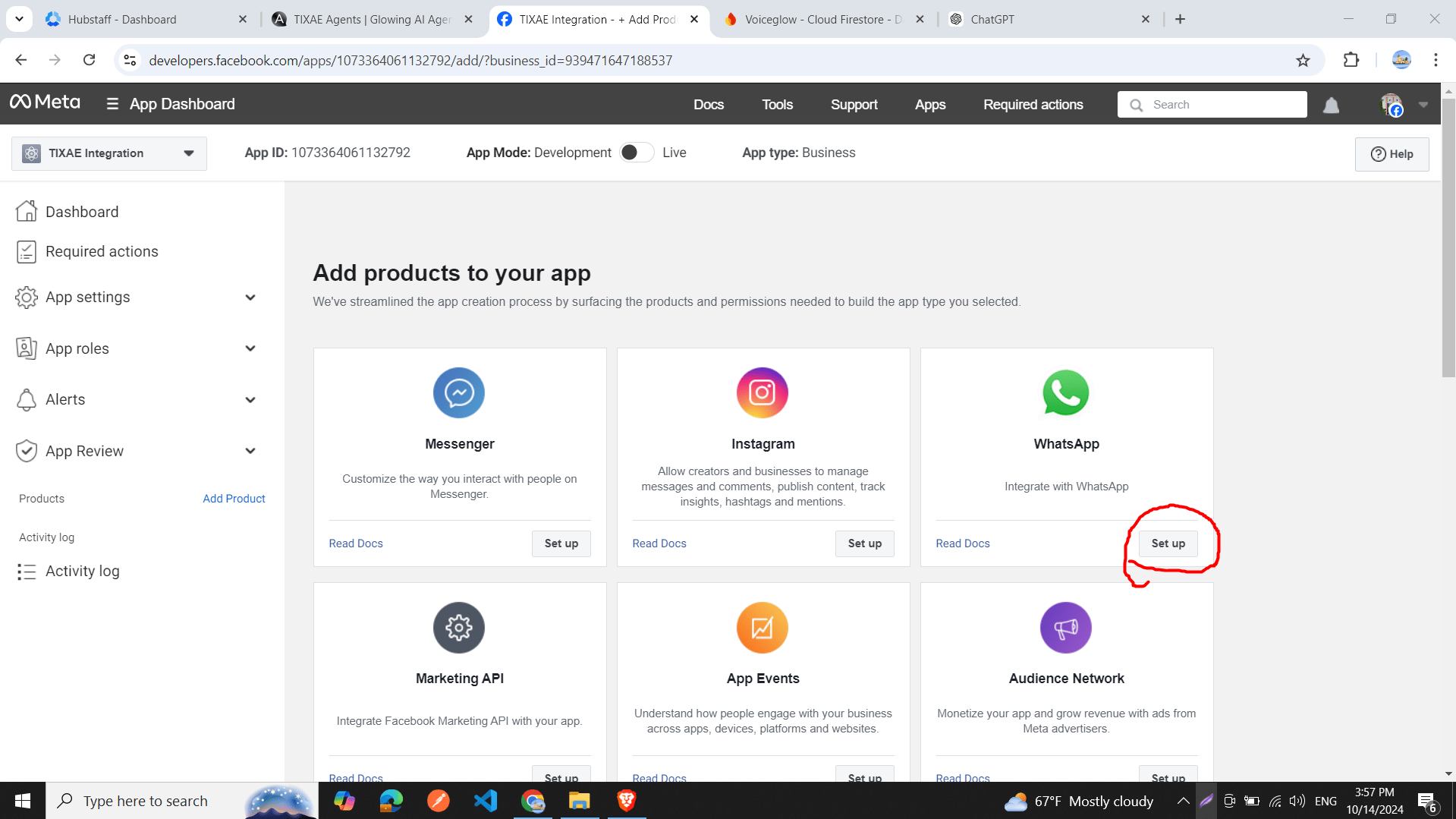
- On the “Add Products to Your App” page, locate the WhatsApp icon and click “Set Up”.
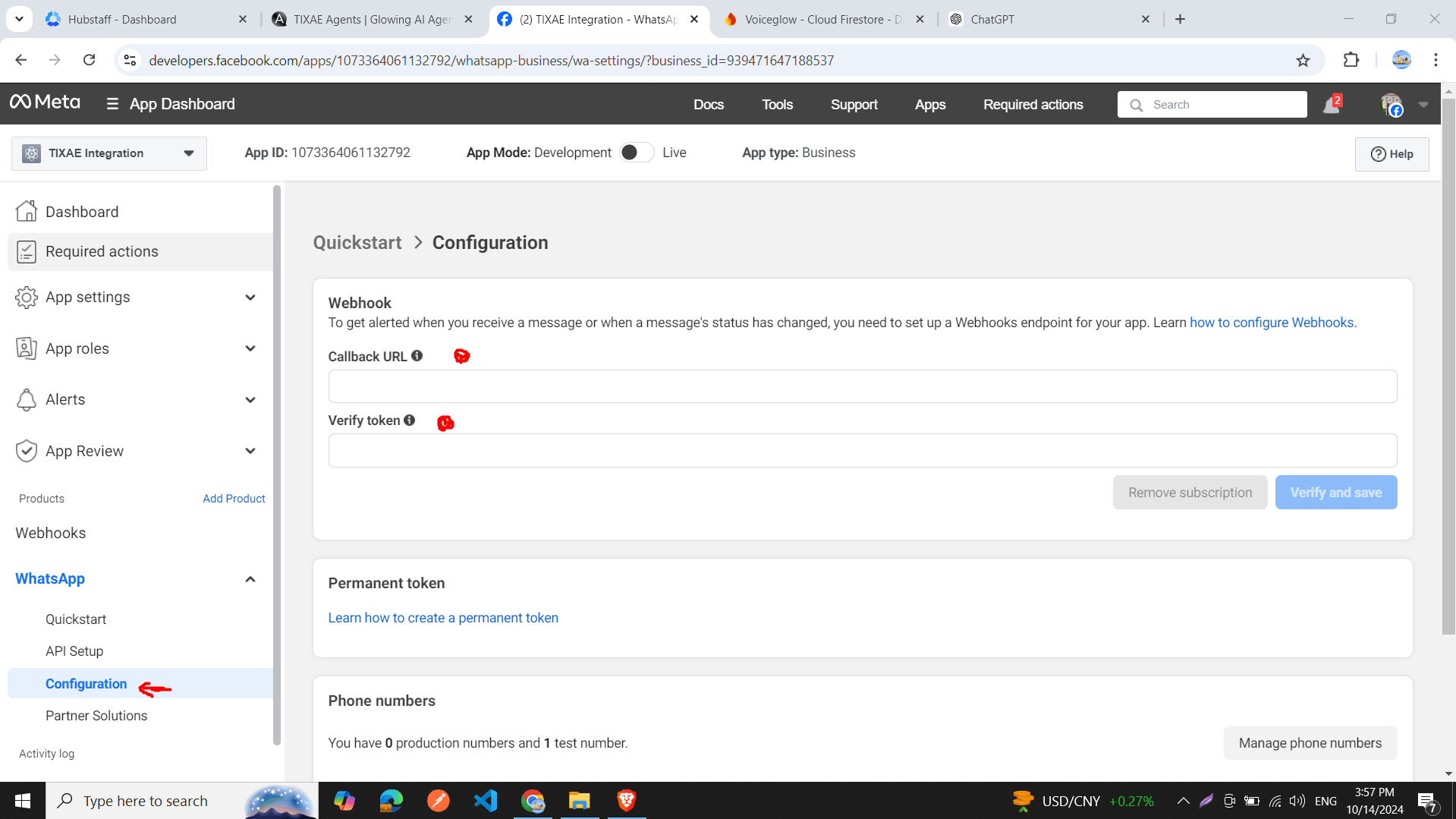
- In the sidebar, click on the “Configuration” tab.
- In the Configuration window:
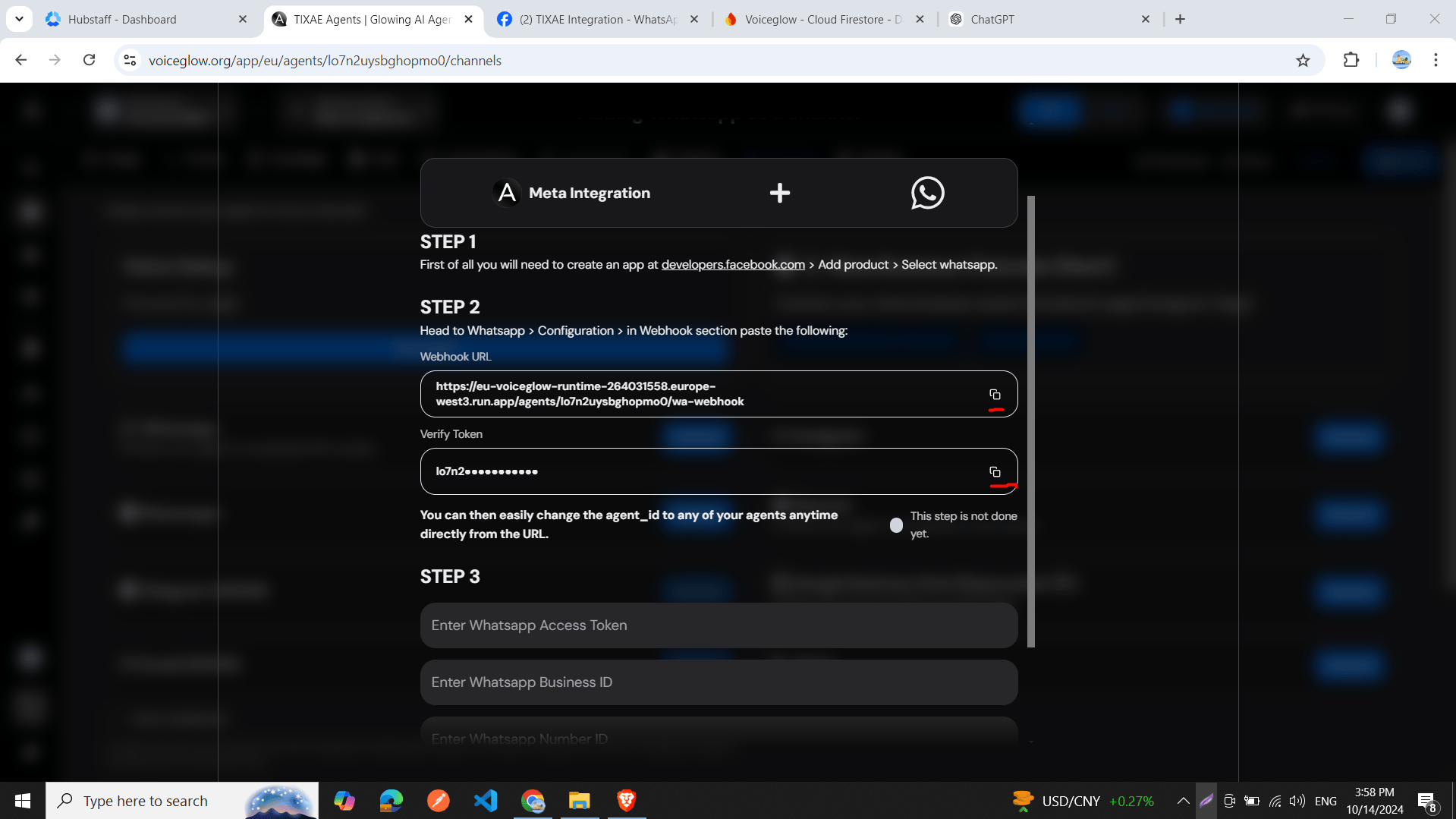
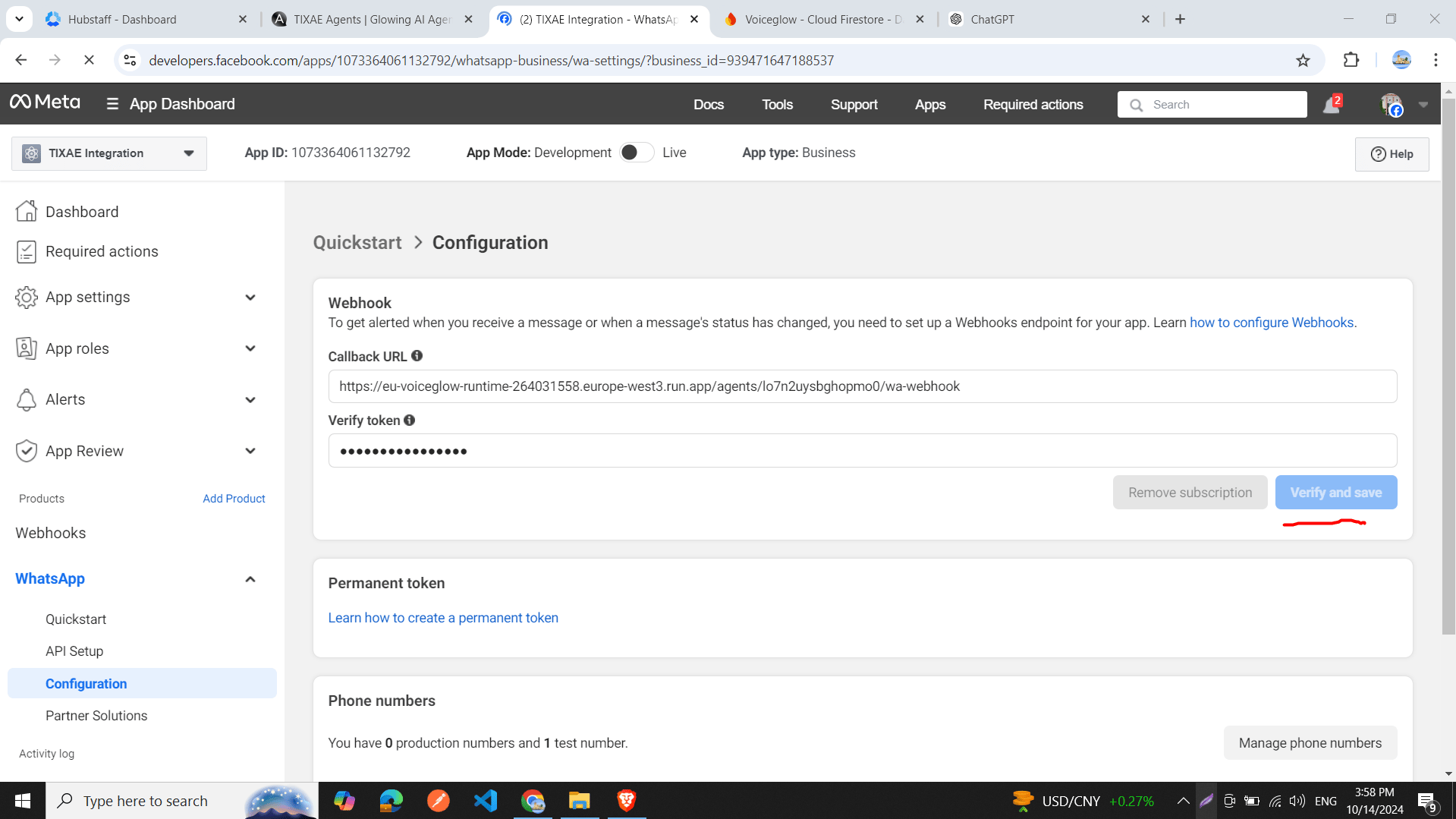
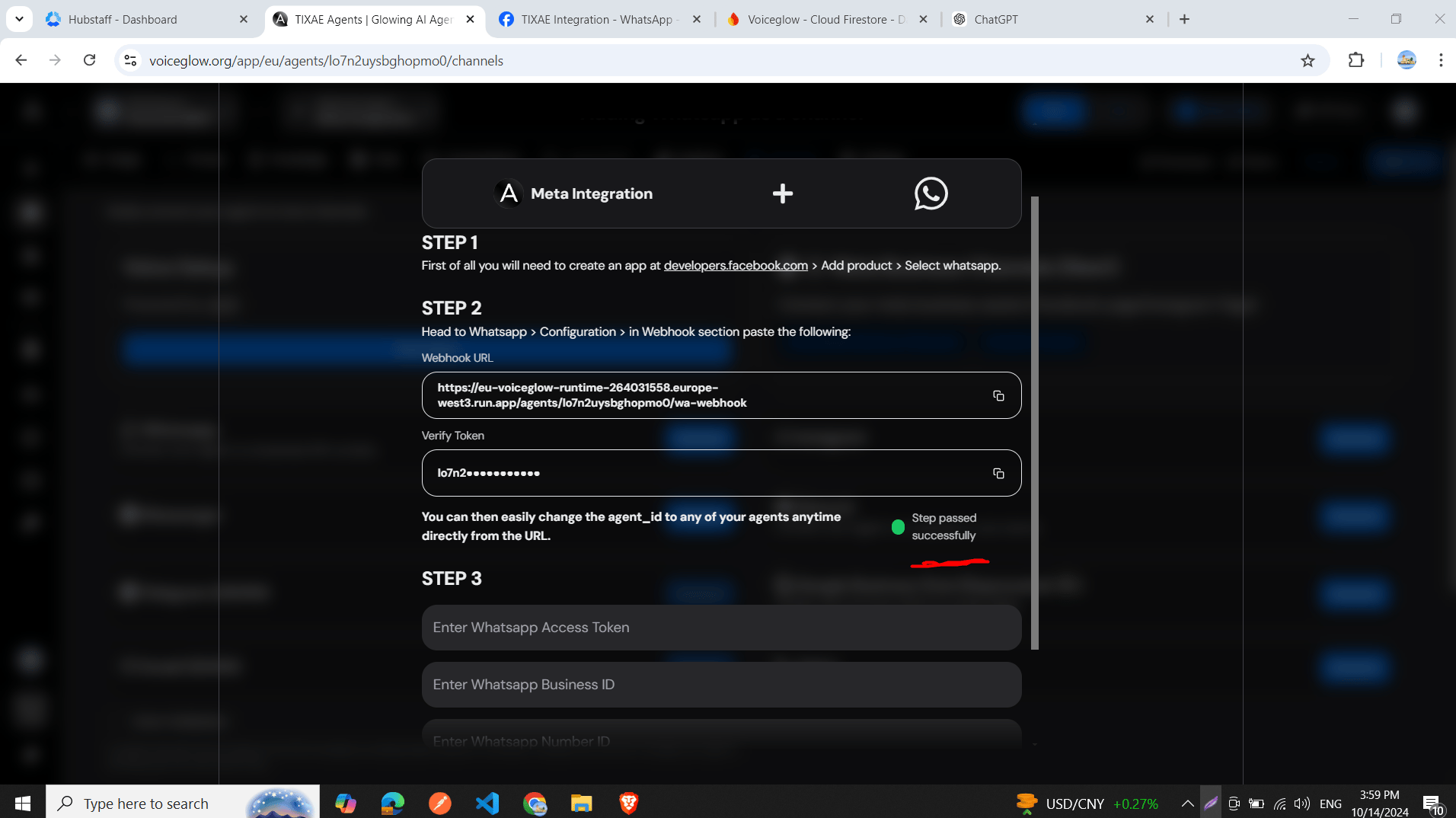
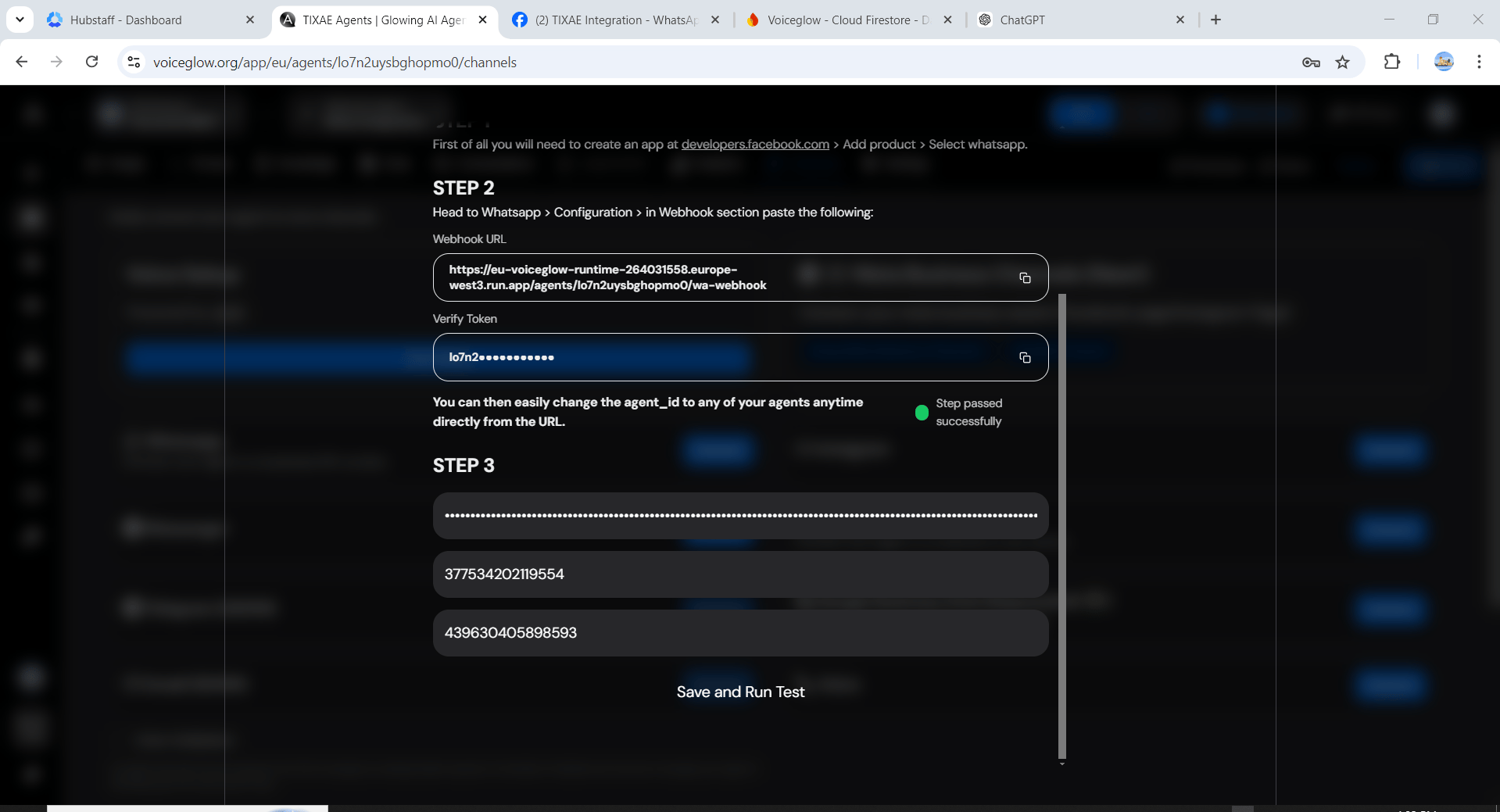
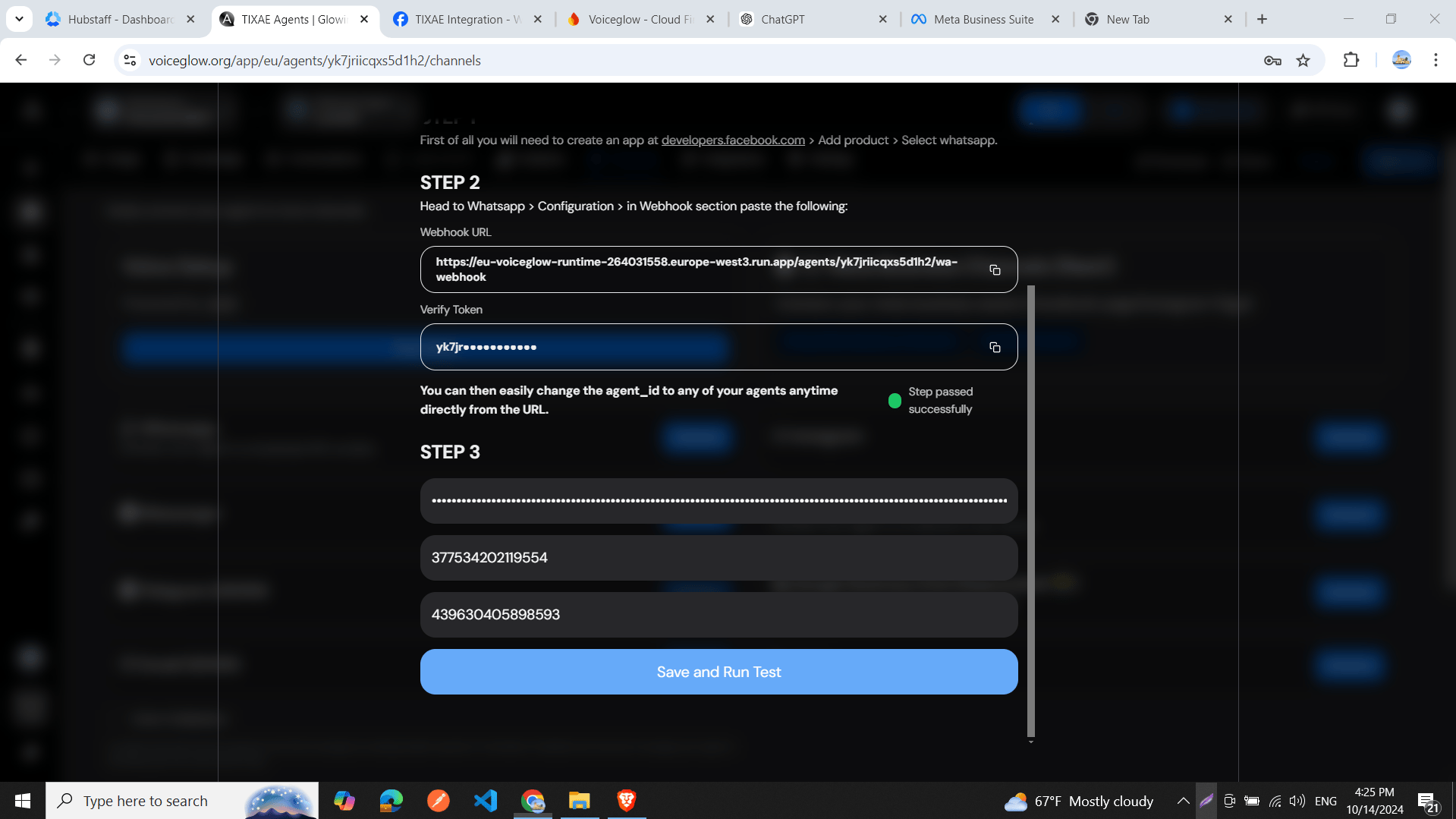
- Paste the callback URL and verify token from your Convocore agent (found in Channels > WhatsApp).
- Click “Verify and Save”.
- You should see a green success message in the Convocore integration window.
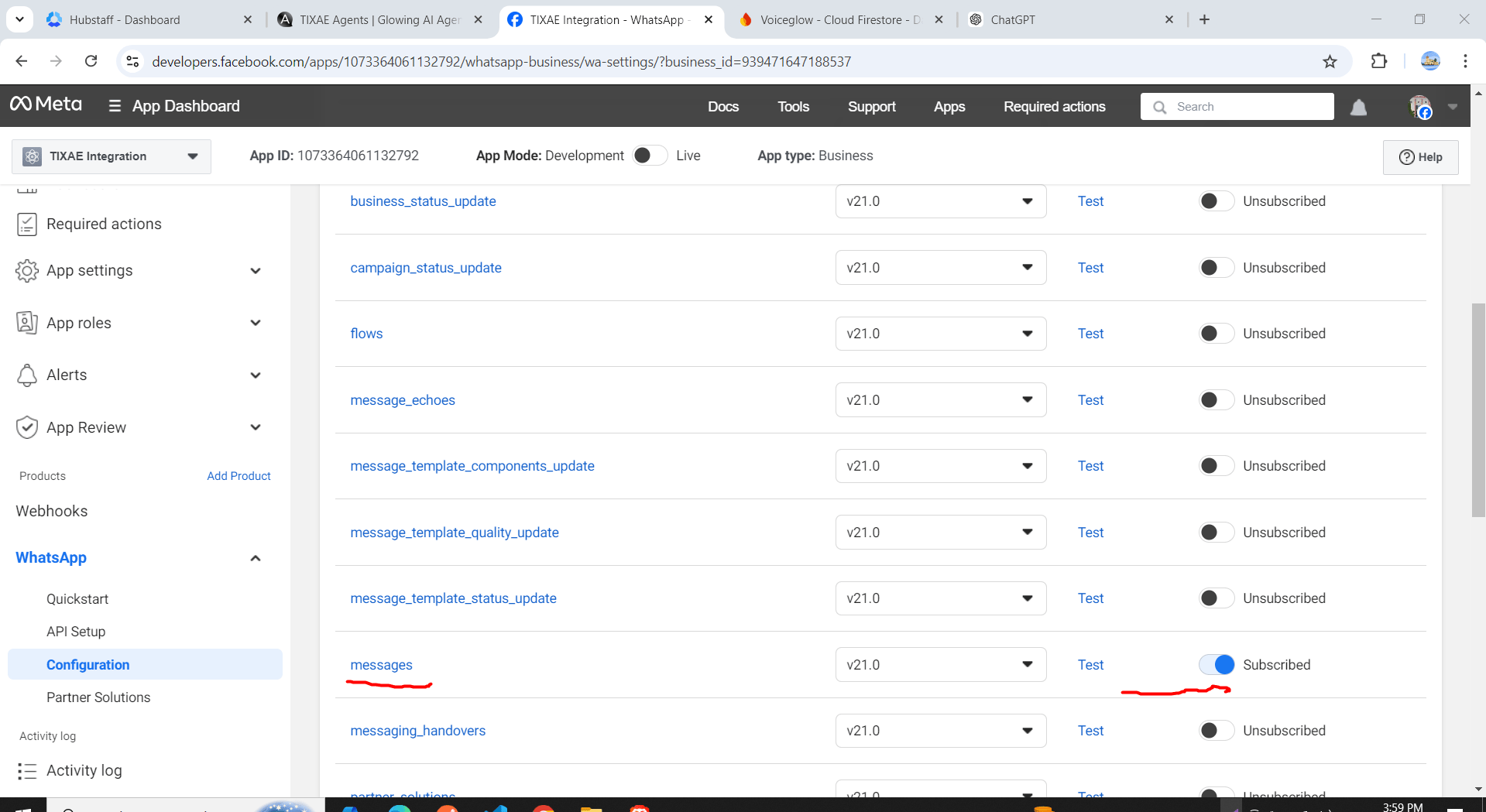
- Scroll down to “Webhook fields”.
- Locate the “messages” tab and subscribe to it.
Step 3: API Setup
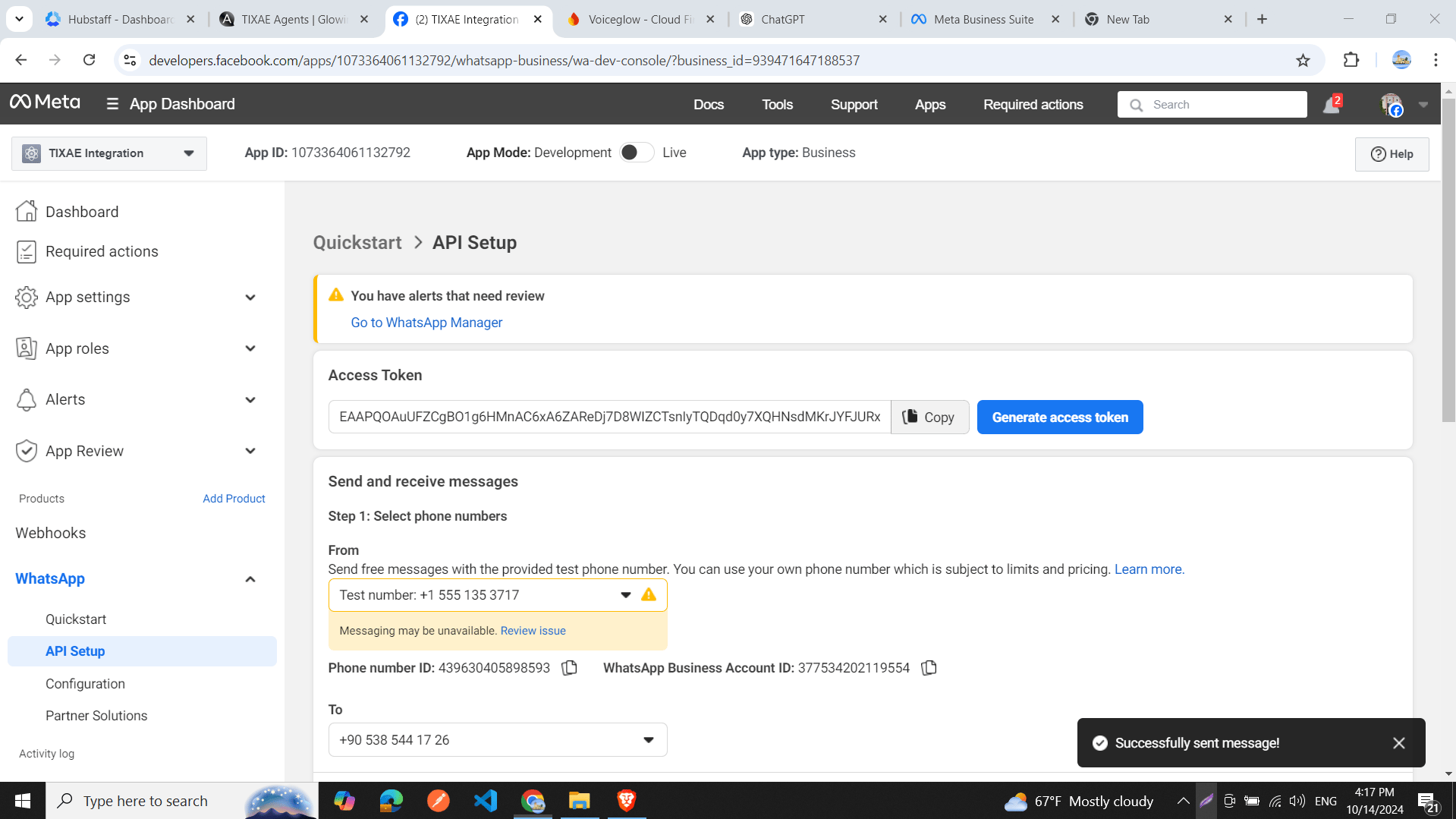
- Click on the “API Setup” tab in the sidebar.
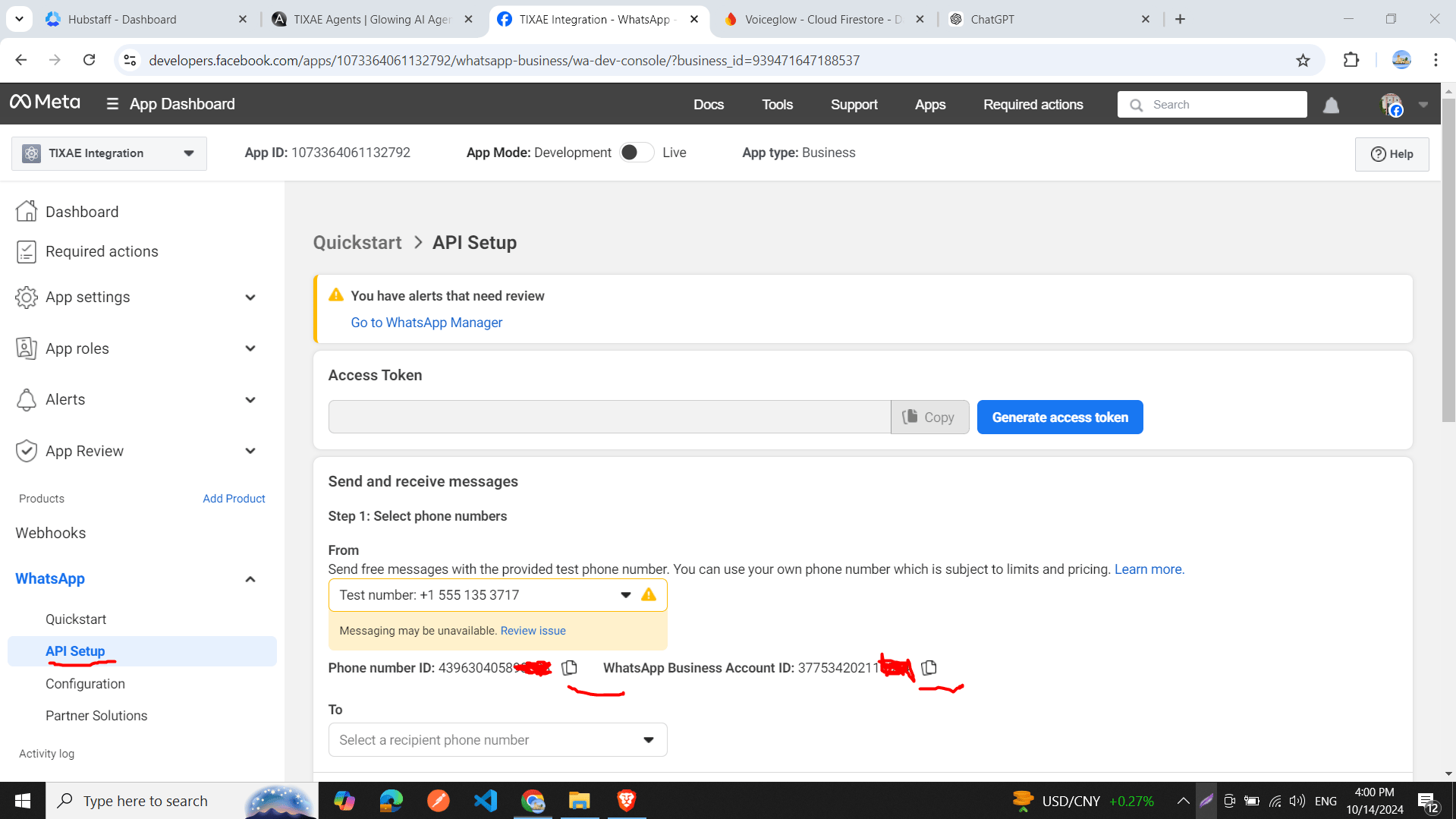
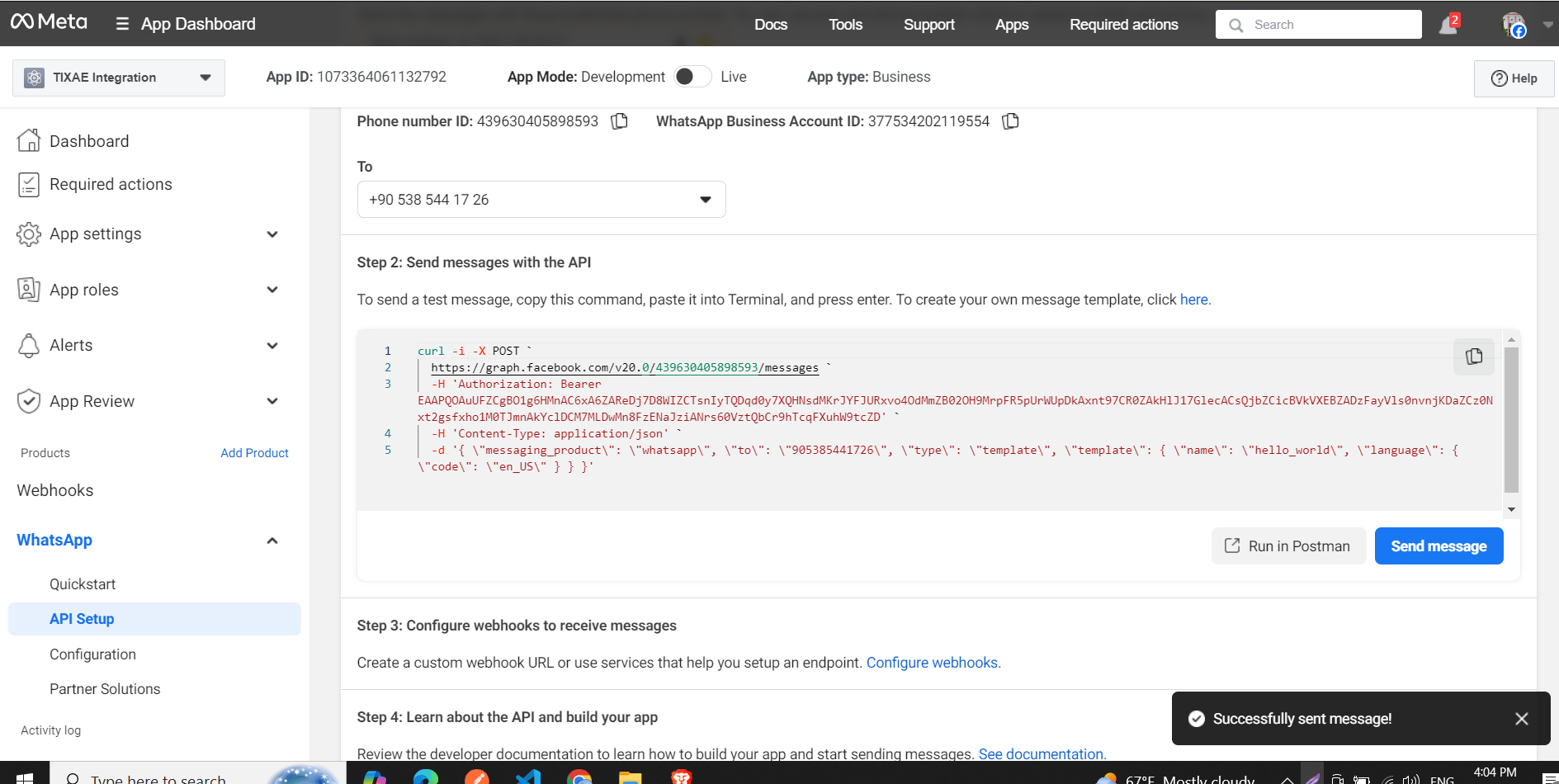
- On the API Setup page, you’ll find:
- Your Phone Number ID
- WhatsApp Business Account ID
- A “Generate Token” button
- A list to choose a recipient phone number for testing
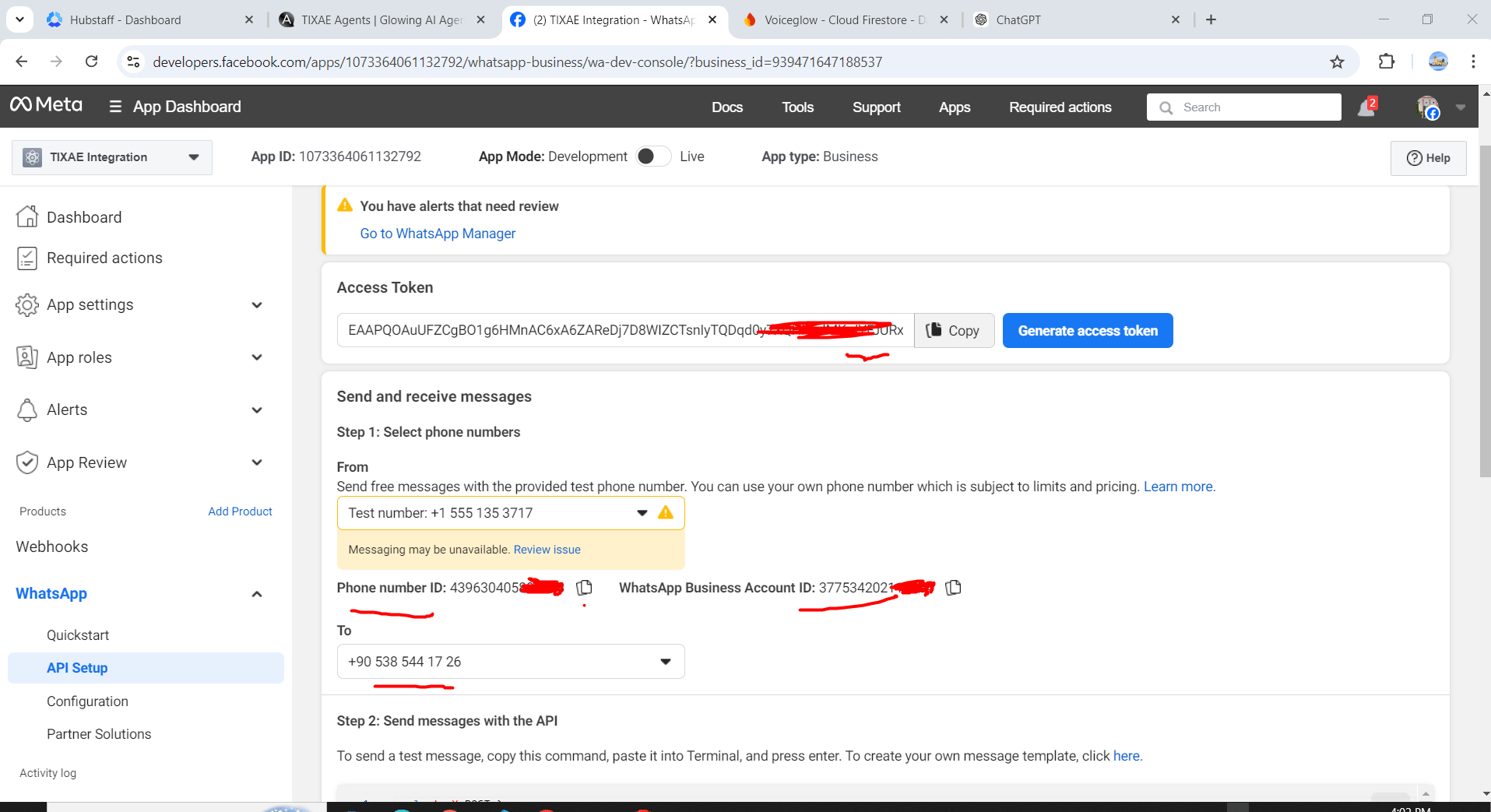
- Add your phone number and select it for testing.
- Click “Generate Token” to create a temporary access token.
- Copy your token, phone ID, and business account ID.
- Paste these details into the Convocore integration window.
- (Optional) Click the “Send Message” button on the App dashboard to send a test message to your recipient number.
Step 4: Generate a Permanent Access Token
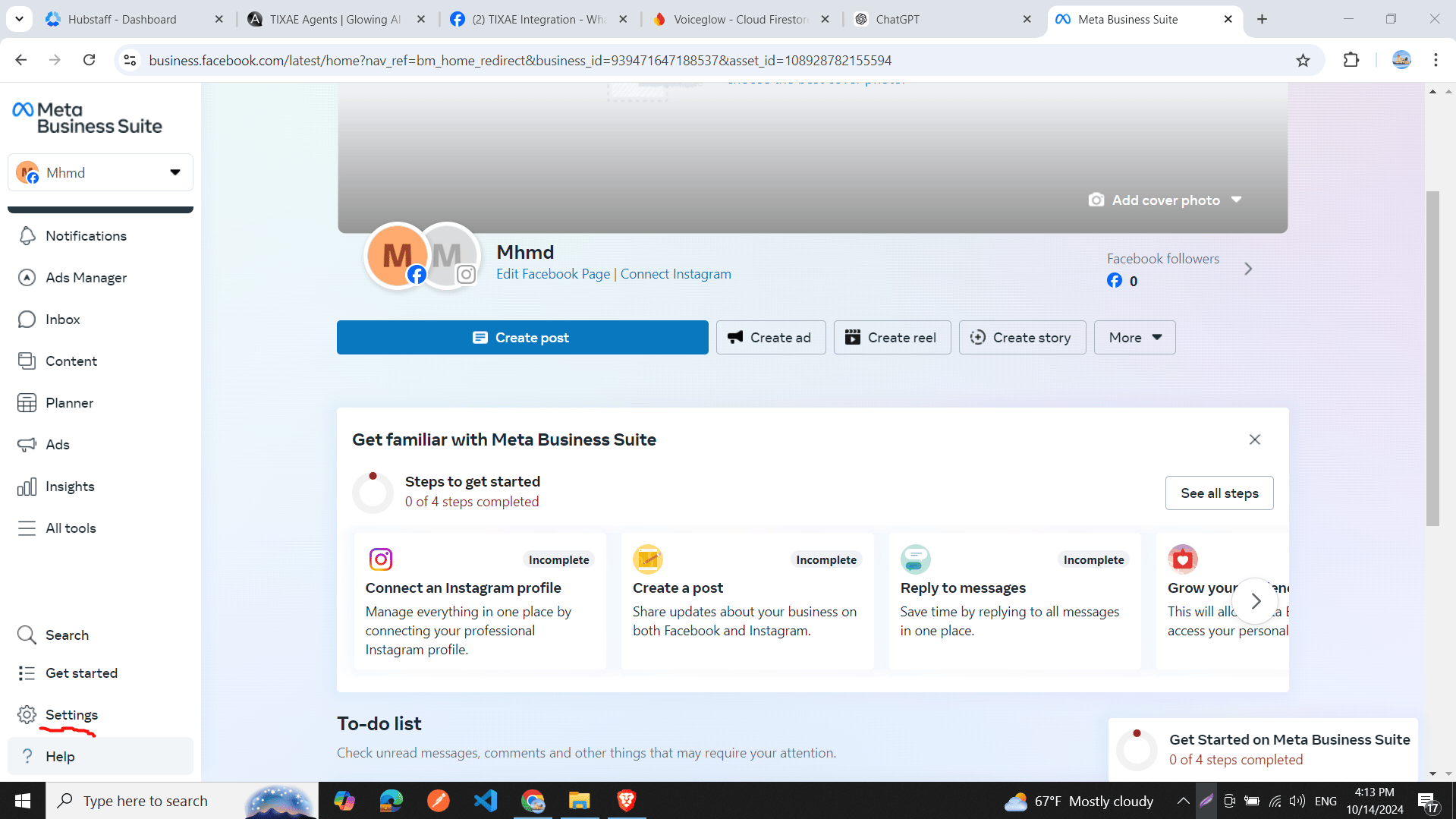
- Go to business.facebook.com.
- In the sidebar, click on “Settings” at the bottom.
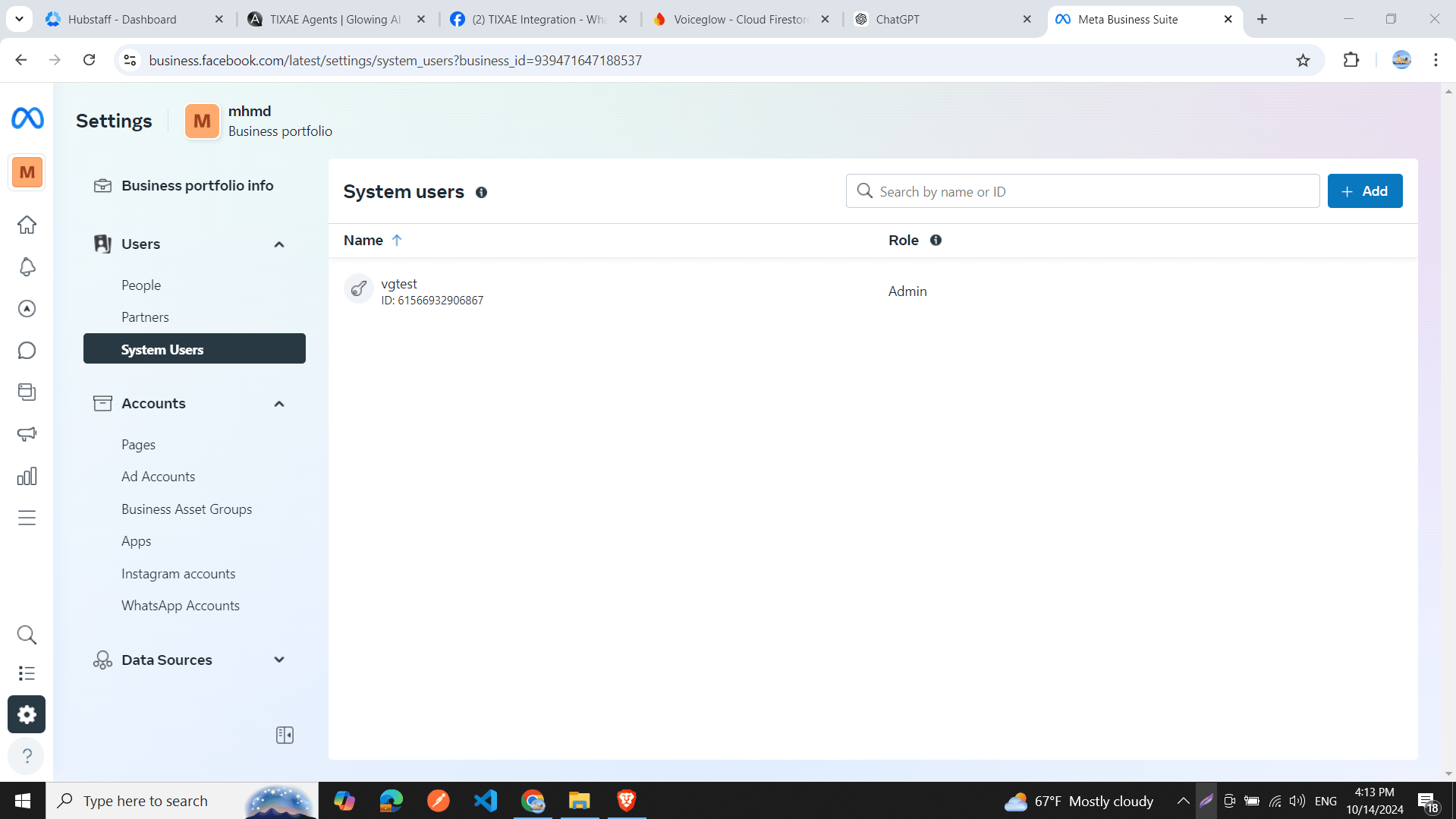
- Go to the “Users” tab and click on “System Users”.
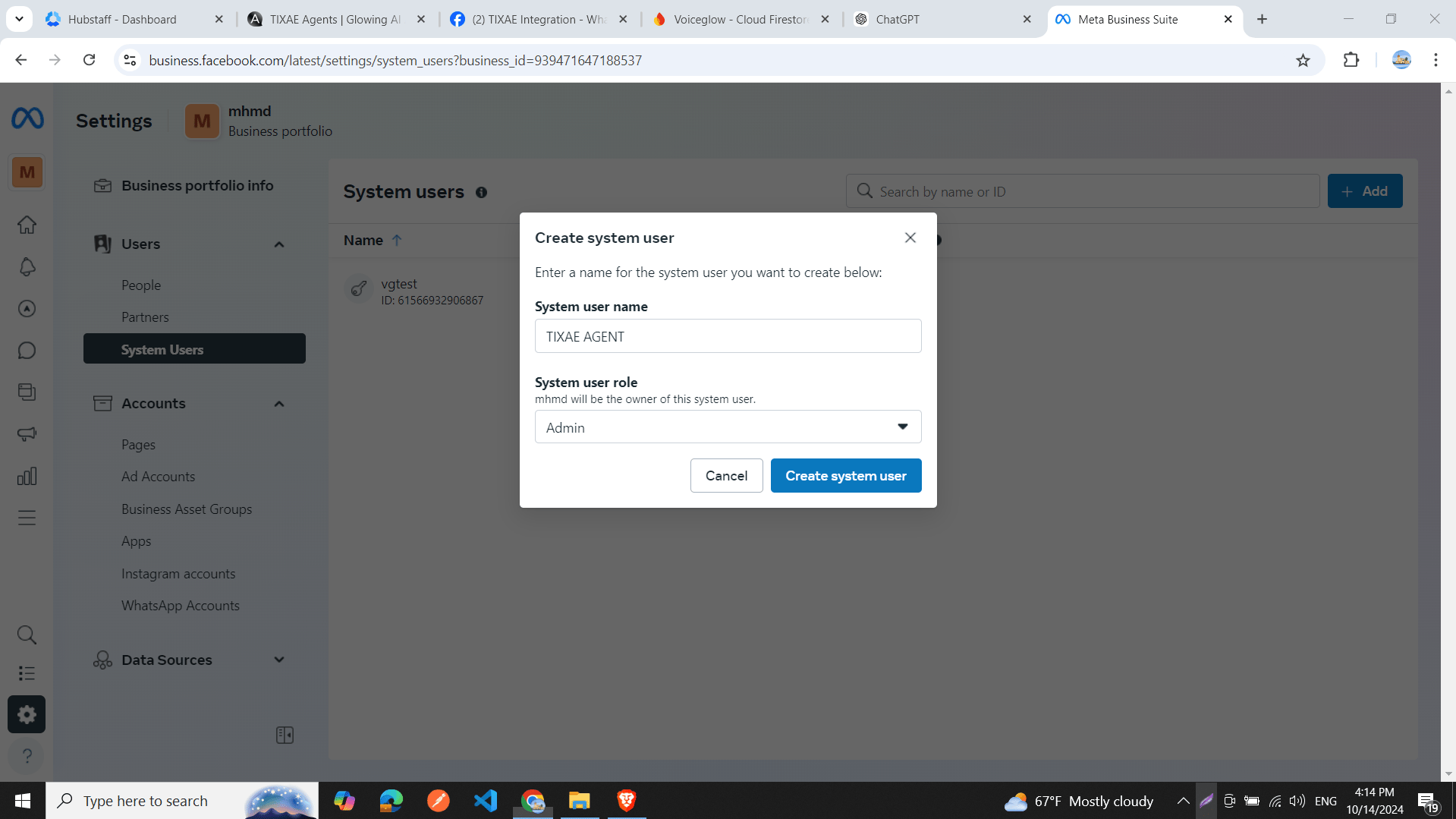
- Click the “Add” button to create a new system user:
- Enter a system user name.
- Choose the system user role (e.g., Admin).
- Click “Create System User”.
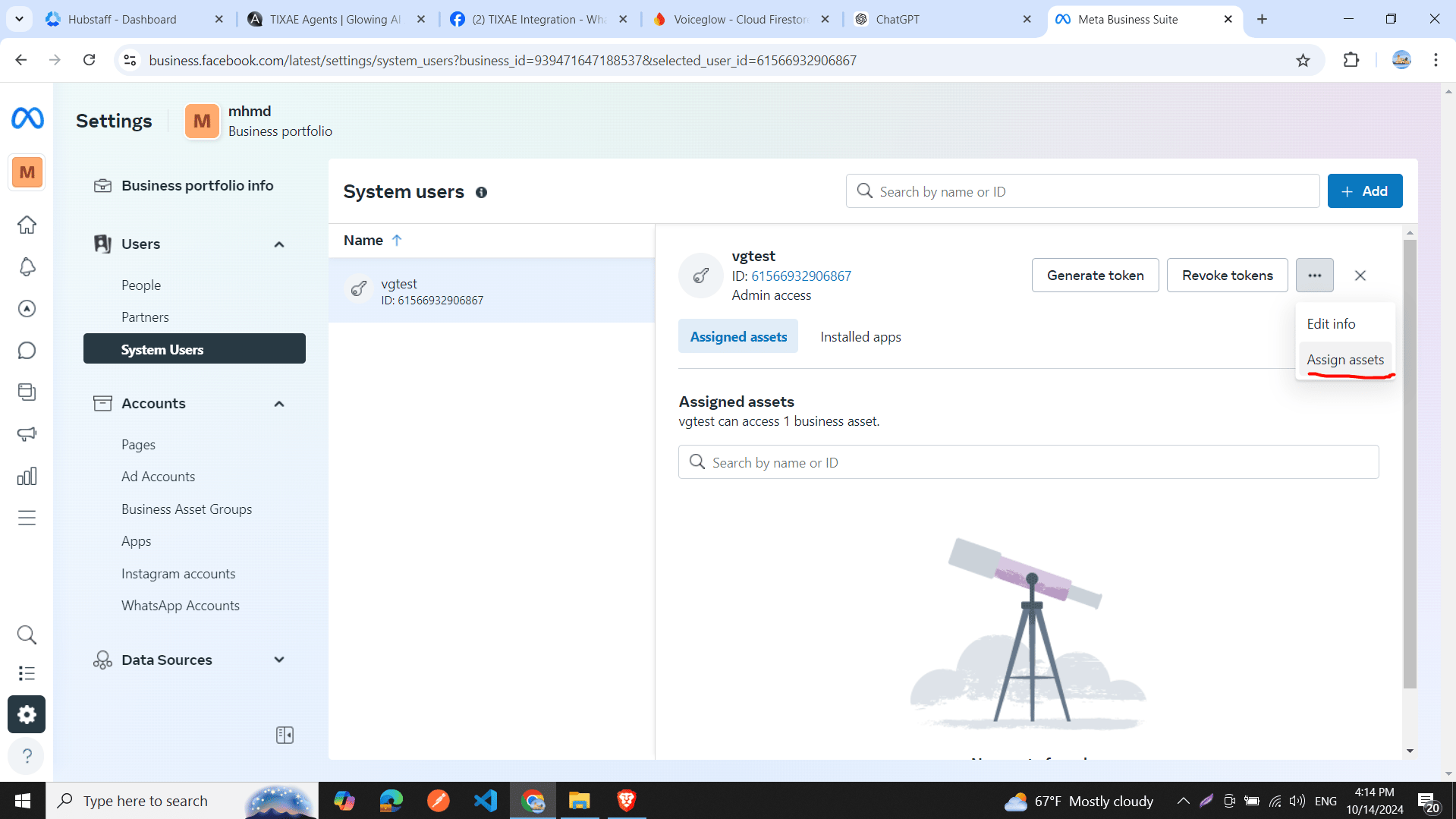
- For the newly created user:
- Click the three dots icon and select “Assign Assets”.
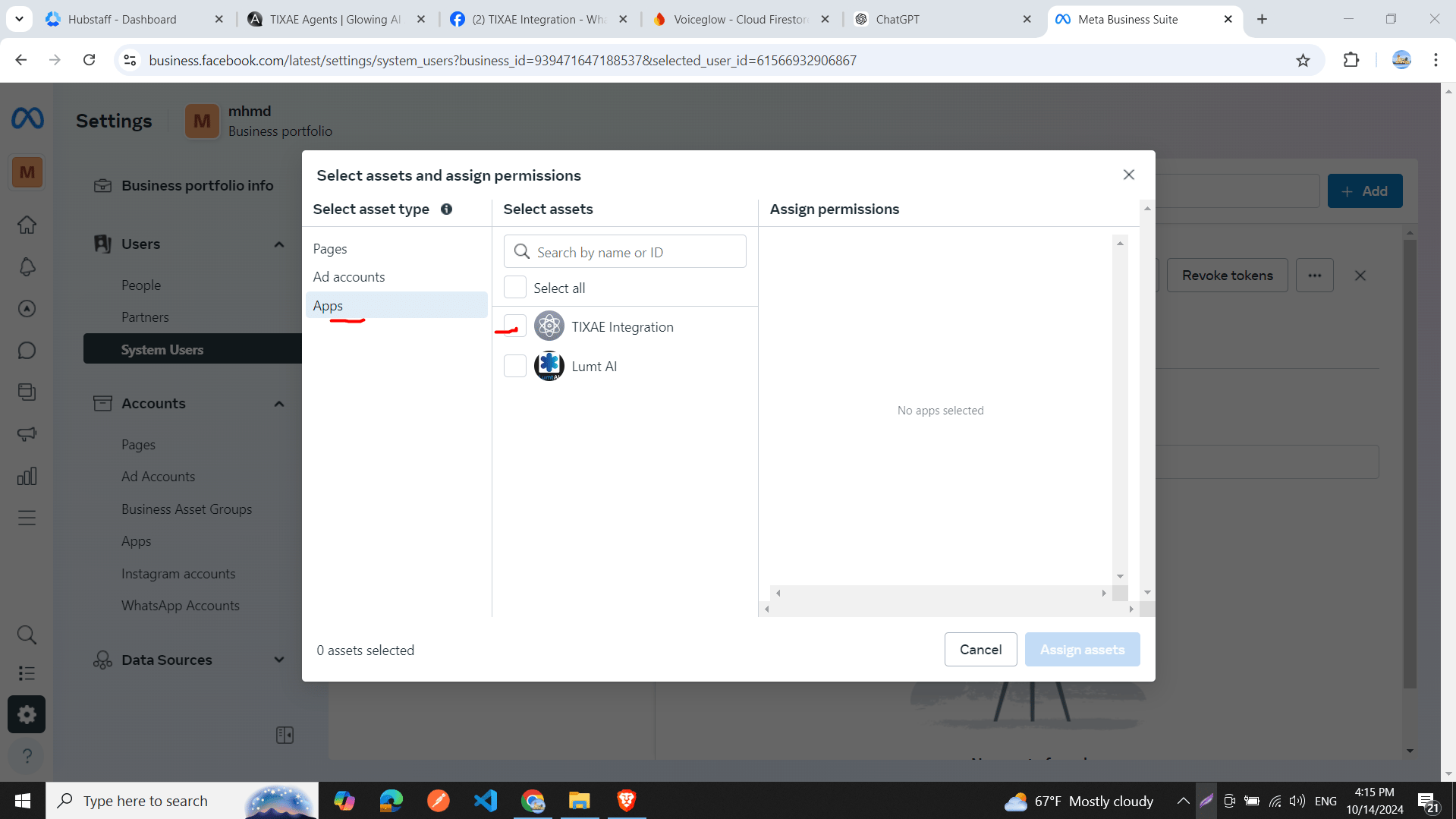
- In the dialog, select asset type as “Apps”.
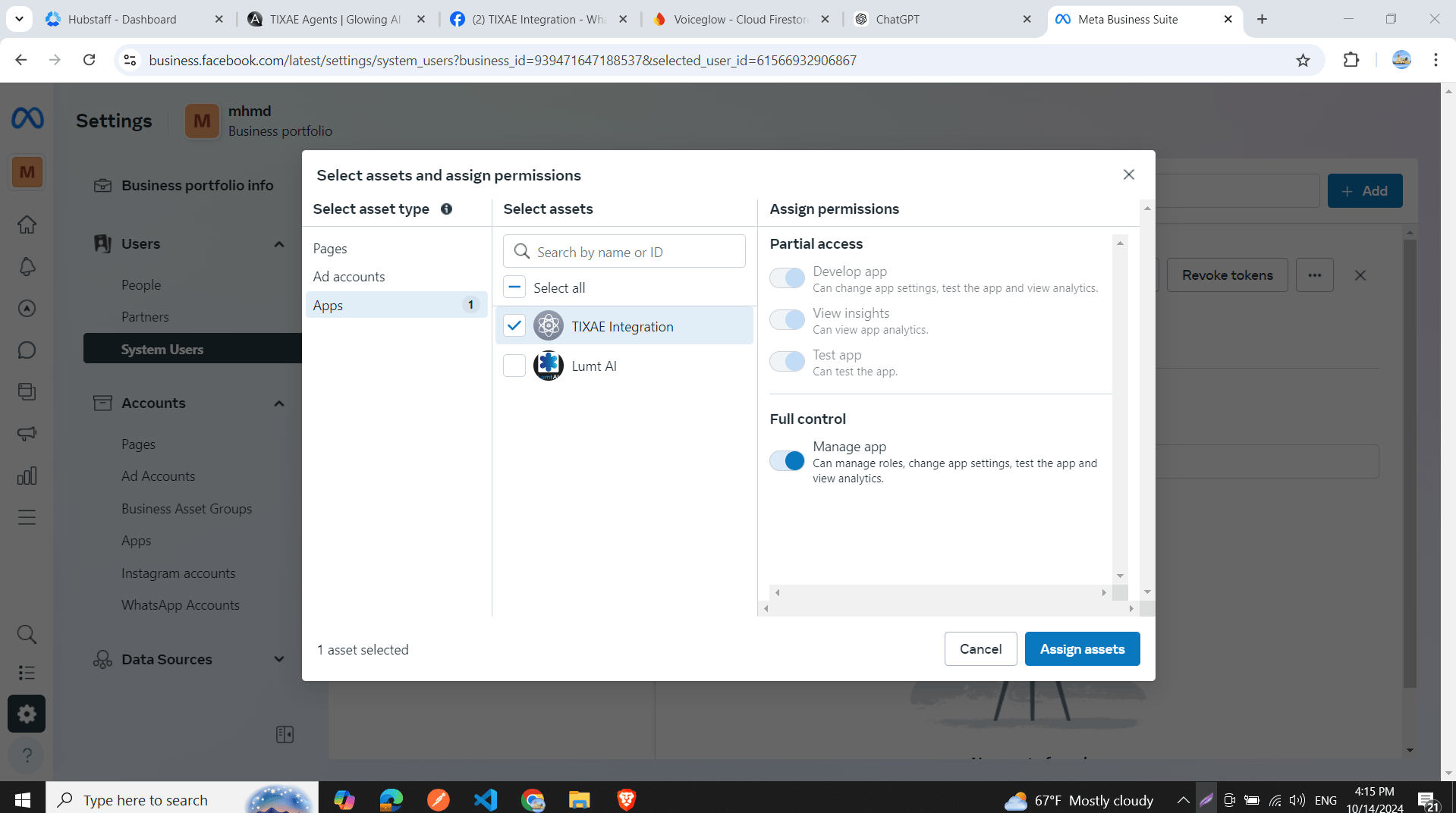
- Choose the app you just created.
- In the “Assign Permissions” tab, select “Full Control”.
- Click “Assign Assets”.
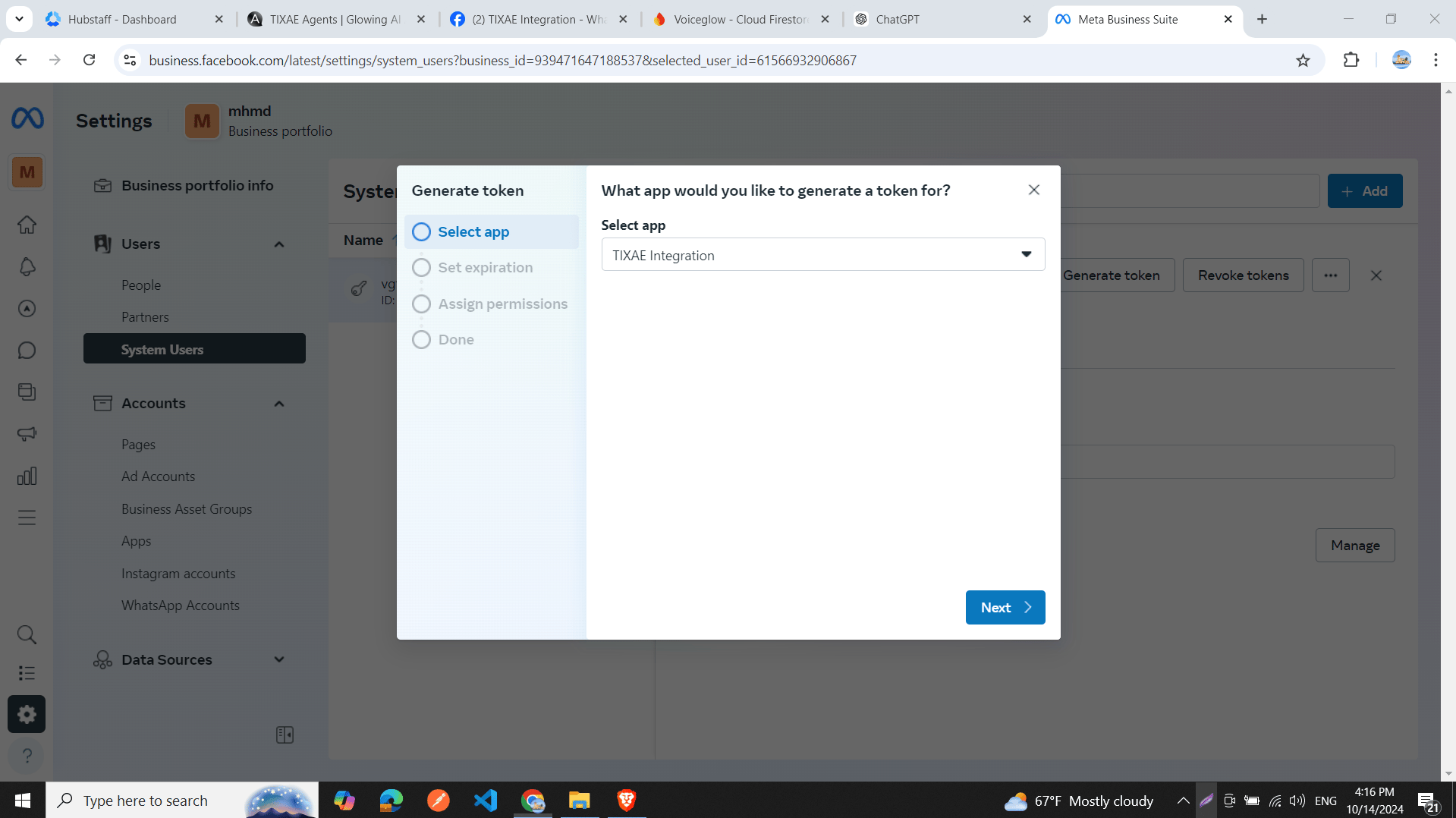
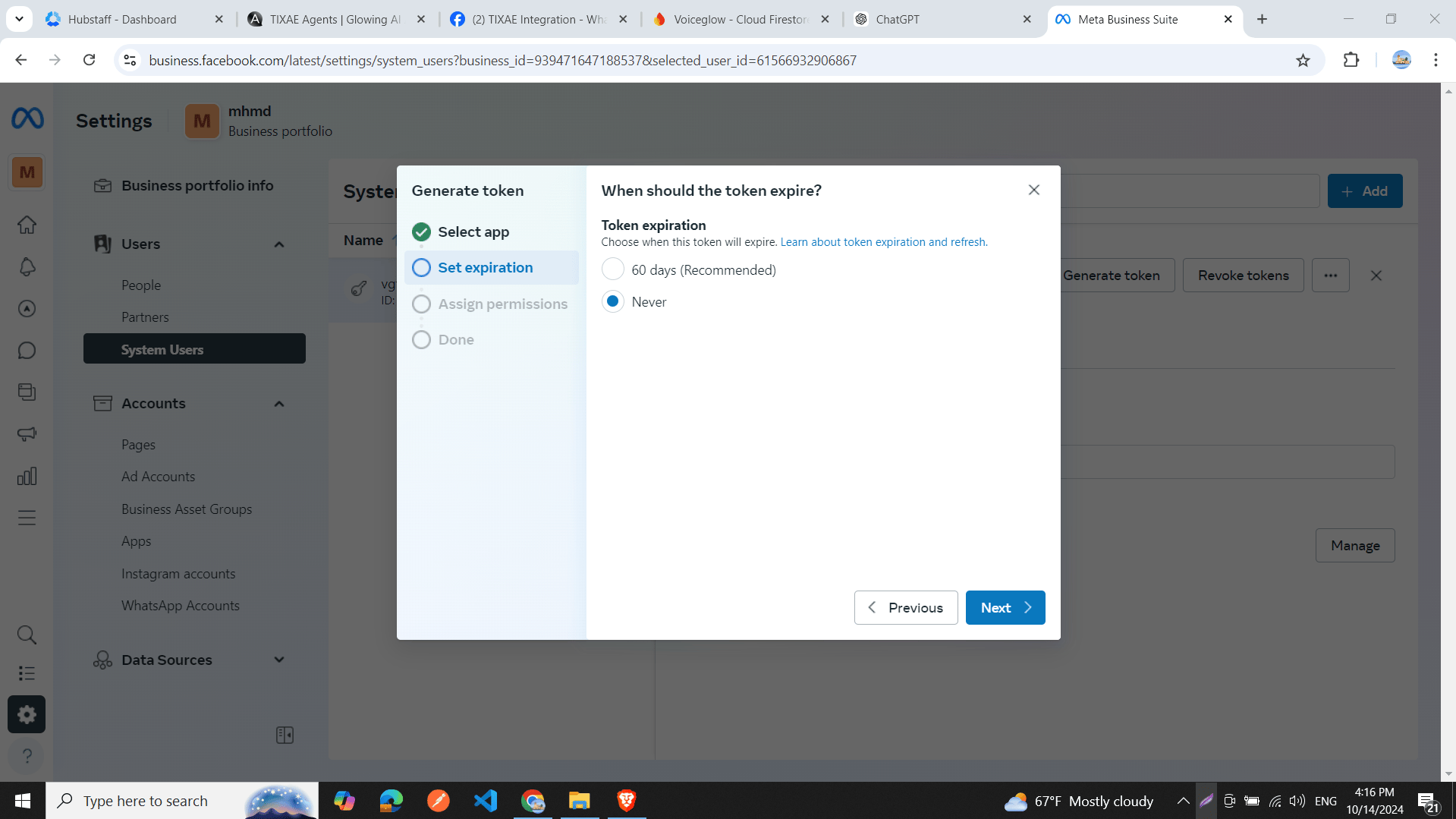
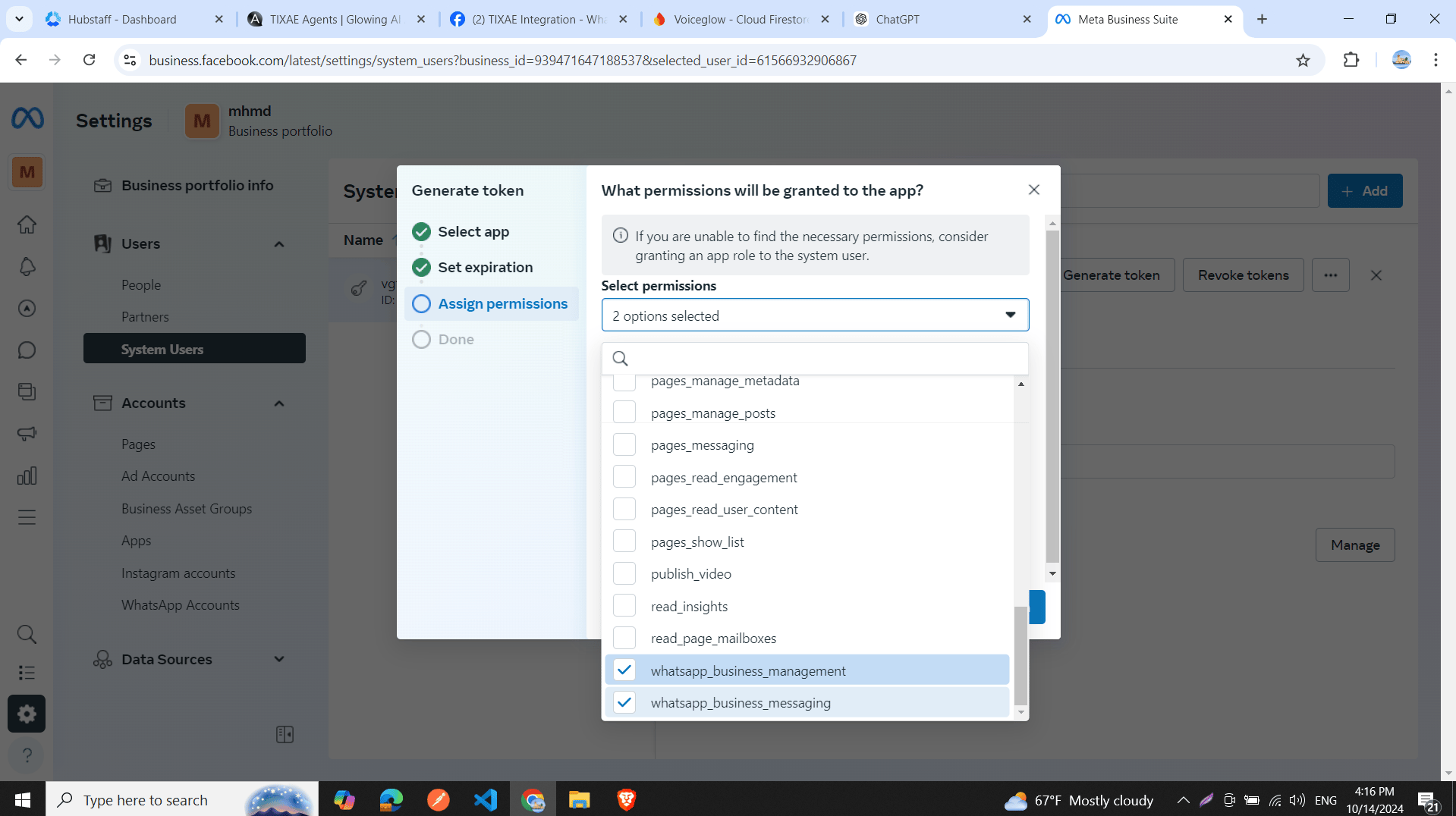
- Click the “Generate Token” button for the system user:
- Select the app you just created and click “Next”.
- Choose “Never” for token expiration and click “Next”.
- In permissions, select “whatsapp_business_management” and “whatsapp_business_messaging”.
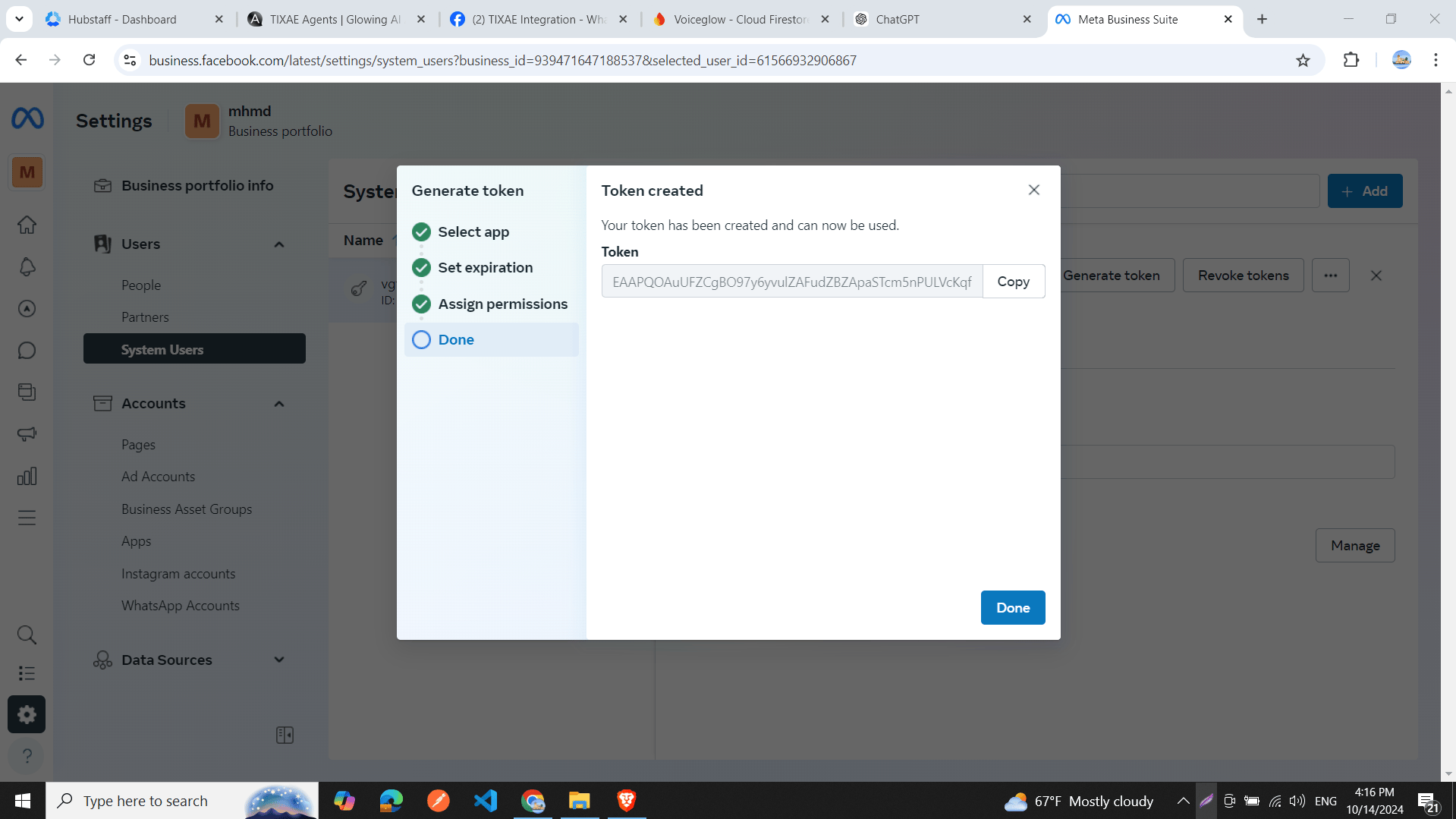
- Click “Next”, then “Copy” the generated token, and click “Done”.
Step 5: Update Token and Test Integration
- Return to developers.facebook.com/apps/.
- In your app’s API Setup window, paste the new permanent token in the Access Token field.
- Update the token in the Convocore integration window with this new permanent token.
- Send a message from your phone to the test WhatsApp number.
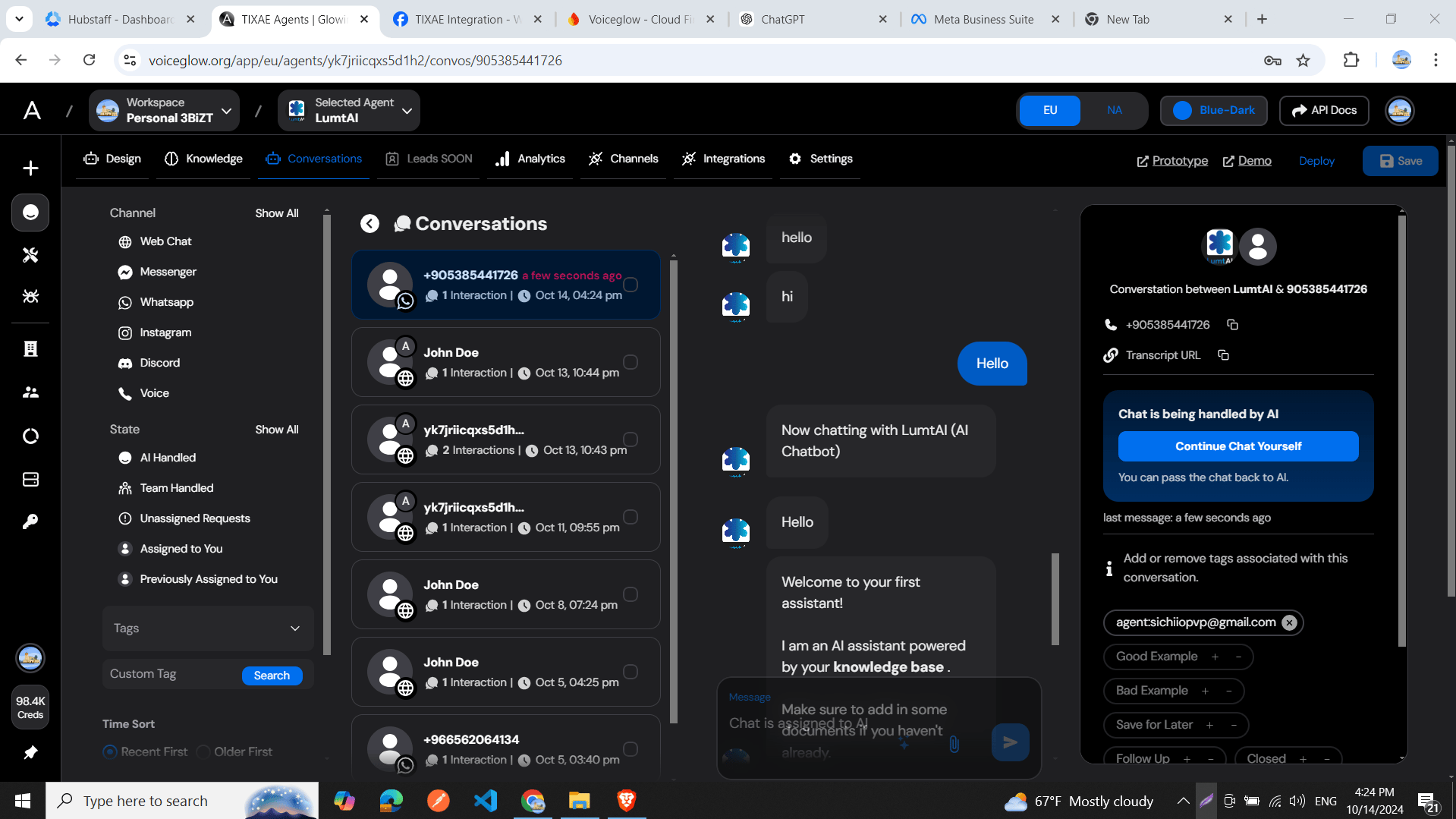
- Check the Convocore conversations window to see if the message appears.
You can follow the same steps to connect a WhatsApp Business account to your
Convocore agent. images are provided in the tutorial for each step.
Voice calls
Your agent can answer WhatsApp calls with the same AI voice runtime used for web and phone calls. Open the number in Channels > WhatsApp, go to the Voice tab and turn on Inbound WhatsApp voice. Requirements:- The number must be connected through the Cloud API only. Numbers connected with Coexistence (also used in the WhatsApp Business app) cannot take calls, because Meta does not support calling on them.
- In Meta for Developers, open WhatsApp > Configuration > Webhook fields and subscribe to calls in addition to messages. The callback URL is the same one used for messages.
- Meta requires a daily messaging limit of at least 2,000 unique recipients before calling can be enabled on a production number.
Voice messages
WhatsApp voice notes are supported on both inbound and outbound flows.- Inbound: Voice messages are automatically transcribed to text for your AI agent (unless you disable Auto-transcribe audio in the agent Channels tab). The dashboard Conversations tab shows the original audio with an inline player and the transcription text.
- Outbound: Your agent can reply with voice notes when configured to send audio responses.
Disable auto-transcription in Agent → Channels if you prefer the agent to process raw audio only, without a text transcript.
Learn More
- This tutorial video provides a comprehensive guide on connecting WhatsApp to your Convocore agent: