> ## Documentation Index
> Fetch the complete documentation index at: https://docs.convocore.app/llms.txt
> Use this file to discover all available pages before exploring further.
# Twilio Setup
> Learn how to setup voice to voice interactions in Convocore.
Integrate **Twilio** with the Voice Suite to enable seamless phone number management and real-time calling. Follow the steps below to configure Twilio in your Convocore dashboard.
On **v2-2026**, Voice / phone starts on **Business** (2 Twilio slots included) or via the Voice add-on. Extra number slots are \$3/mo. See [Voice pricing](/voice/pricing).
***
## 🛠 Step 1: Access the Voice Setup Page
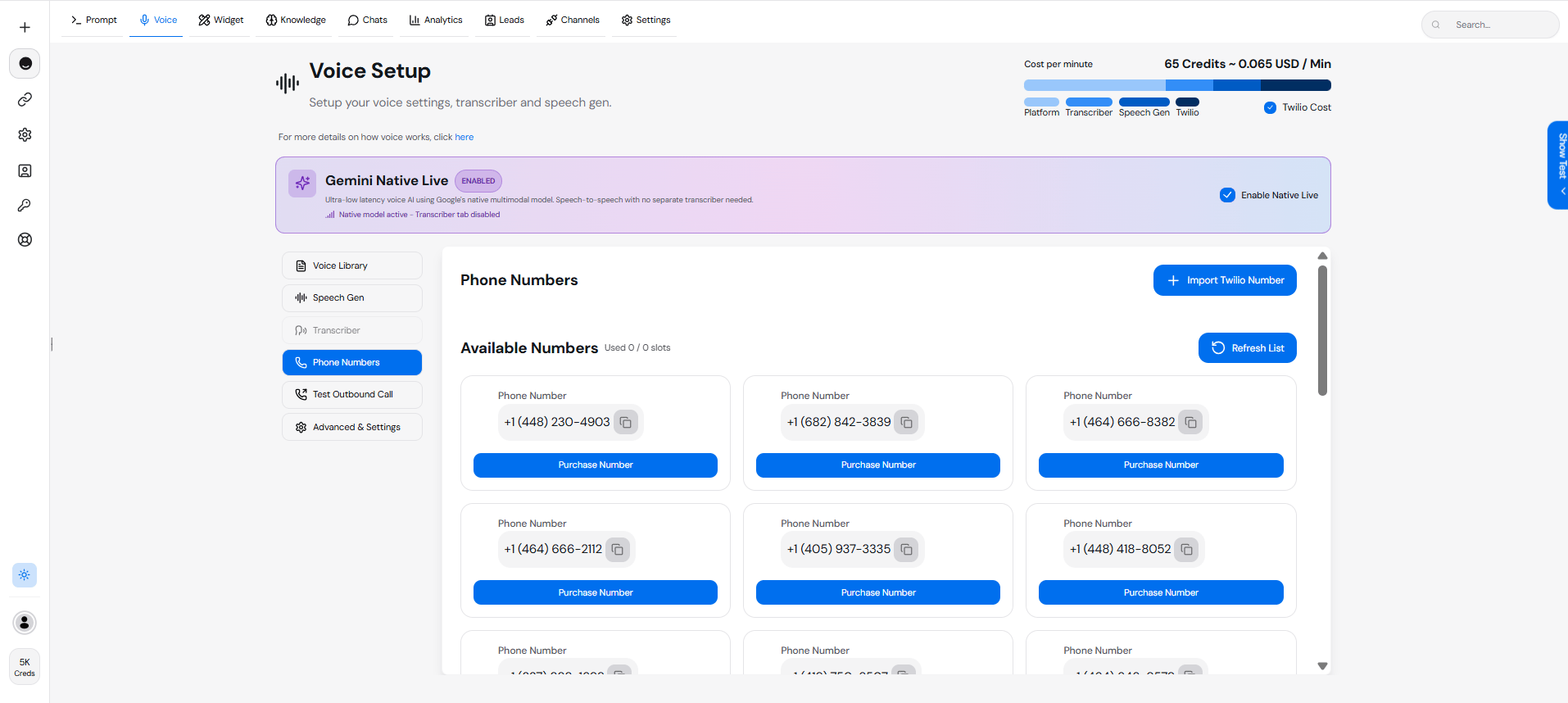
1. Navigate to the **Voice Setup** page in the Convocore dashboard.
2. Select the **Phone Numbers** tab.
 ***
## 📞 Step 2: Purchase or View Twilio Numbers
### 2.1 **View Available Numbers**
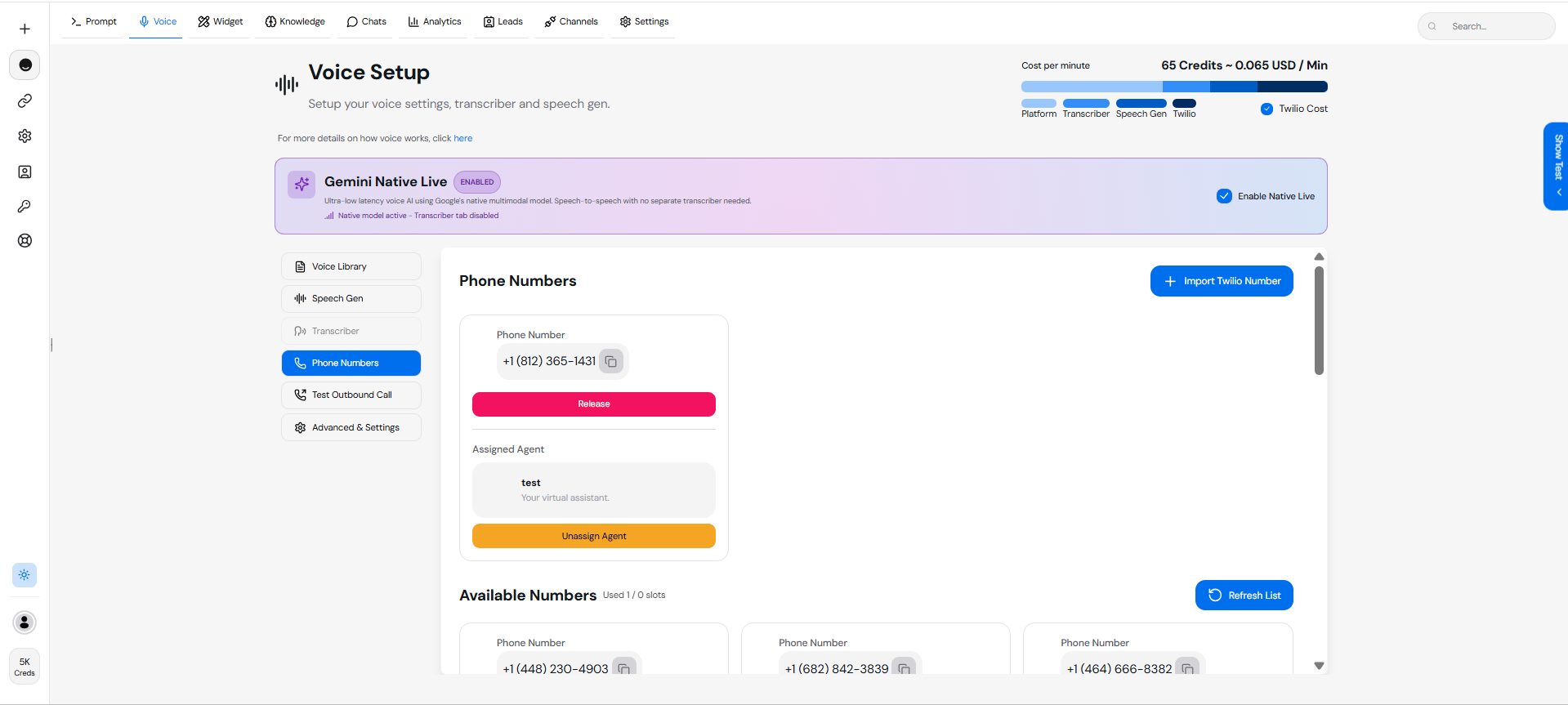
* Click on the **Phone Numbers** tab.
* A list of **Available Numbers** will appear.
* To refresh the list, click **"Refresh List"**.
### 2.2 **Purchase a Number**
* Click **"Buy"** next to a Twilio number to purchase it.
* Once purchased, the number will appear under **Purchased Numbers**.
***
## 📞 Step 2: Purchase or View Twilio Numbers
### 2.1 **View Available Numbers**
* Click on the **Phone Numbers** tab.
* A list of **Available Numbers** will appear.
* To refresh the list, click **"Refresh List"**.
### 2.2 **Purchase a Number**
* Click **"Buy"** next to a Twilio number to purchase it.
* Once purchased, the number will appear under **Purchased Numbers**.
 ***
## 🔑 Step 3: Assign a Number to Your Agent
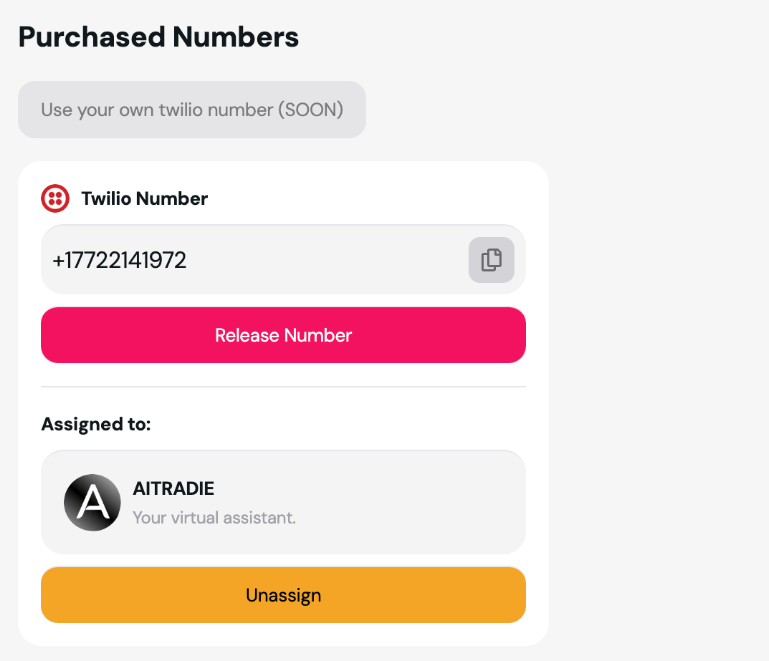
1. Under **Purchased Numbers**, locate the number you wish to assign.
2. Click the **"Assign"** button.
3. Assign the number to your virtual agent (e.g., **test**).
> **Tip**: You can **Release** or **Unassign** numbers if needed.
***
## 🔑 Step 3: Assign a Number to Your Agent
1. Under **Purchased Numbers**, locate the number you wish to assign.
2. Click the **"Assign"** button.
3. Assign the number to your virtual agent (e.g., **test**).
> **Tip**: You can **Release** or **Unassign** numbers if needed.
 ***
## 📥 Step 4: Import Your Own Twilio Number
If you already own phone numbers in your Twilio account, you can import them instead of purchasing through Convocore.
In the dashboard, go to **Agents** → select your agent → **Voice** → **Phone Numbers** tab.
Click **Import Twilio Number** in the top-right of the Phone Numbers section.
Fill in:
* **Phone Number** — E.164 format (e.g. `+14155551234`)
* **Account SID** — from your [Twilio Console](https://console.twilio.com) dashboard
* **Auth Token** — from the same dashboard (stored encrypted by Convocore)
Enable **Voice**, **SMS**, or both. At least one capability is required.
Click **Import Number**. Convocore configures voice/SMS webhooks and assigns the number to the **current agent**.
The import is scoped to the agent whose Voice settings you opened. If you manage numbers for multiple agents, repeat the import from each agent's Phone Numbers tab.
Imported numbers appear in your workspace phone list with an **imported** indicator. Outbound test calls from the Voice tab are only available for imported numbers.
For API-based imports, see [Import a Twilio number](/api-reference/v3/voices/import-twilio-number).
***
## 📊 Cost Breakdown
* Convocore Voice charges **10 credits per minute** for Twilio calls.
* The cost per minute is displayed in the dashboard:
* **22 Credits \~ 0.083 USD/Min**.
***
## 🚦 Troubleshooting
### Issue: Twilio Numbers Not Showing Up
* Ensure your Twilio credentials are correct.
* Refresh the list under **Available Numbers**.
### Issue: Calls Not Connecting
* Verify that your assigned Twilio number is active in the Twilio Console.
* Check network settings and webhook configurations.
### Issue: Imported Number Not Working
Imported numbers have extra Twilio-side requirements (routing status, webhooks, emergency address). See the dedicated guide: [Troubleshooting Imported Twilio Numbers](/support/imported-twilio).
Common causes:
* **Inactive regional routing** in the Twilio Console (must show **Active**)
* **Missing or incorrect webhooks** on the phone number
* **Voice capability not enabled** on the imported number
***
## 🔗 Next Steps
Enable browser-based calling.
Customize your voice settings for Twilio.
Fix routing, webhook, and configuration issues for imported numbers.
You’re all set! Start leveraging Twilio with the Voice Suite to manage phone numbers and real-time calls seamlessly. 🚀
***
## 📥 Step 4: Import Your Own Twilio Number
If you already own phone numbers in your Twilio account, you can import them instead of purchasing through Convocore.
In the dashboard, go to **Agents** → select your agent → **Voice** → **Phone Numbers** tab.
Click **Import Twilio Number** in the top-right of the Phone Numbers section.
Fill in:
* **Phone Number** — E.164 format (e.g. `+14155551234`)
* **Account SID** — from your [Twilio Console](https://console.twilio.com) dashboard
* **Auth Token** — from the same dashboard (stored encrypted by Convocore)
Enable **Voice**, **SMS**, or both. At least one capability is required.
Click **Import Number**. Convocore configures voice/SMS webhooks and assigns the number to the **current agent**.
The import is scoped to the agent whose Voice settings you opened. If you manage numbers for multiple agents, repeat the import from each agent's Phone Numbers tab.
Imported numbers appear in your workspace phone list with an **imported** indicator. Outbound test calls from the Voice tab are only available for imported numbers.
For API-based imports, see [Import a Twilio number](/api-reference/v3/voices/import-twilio-number).
***
## 📊 Cost Breakdown
* Convocore Voice charges **10 credits per minute** for Twilio calls.
* The cost per minute is displayed in the dashboard:
* **22 Credits \~ 0.083 USD/Min**.
***
## 🚦 Troubleshooting
### Issue: Twilio Numbers Not Showing Up
* Ensure your Twilio credentials are correct.
* Refresh the list under **Available Numbers**.
### Issue: Calls Not Connecting
* Verify that your assigned Twilio number is active in the Twilio Console.
* Check network settings and webhook configurations.
### Issue: Imported Number Not Working
Imported numbers have extra Twilio-side requirements (routing status, webhooks, emergency address). See the dedicated guide: [Troubleshooting Imported Twilio Numbers](/support/imported-twilio).
Common causes:
* **Inactive regional routing** in the Twilio Console (must show **Active**)
* **Missing or incorrect webhooks** on the phone number
* **Voice capability not enabled** on the imported number
***
## 🔗 Next Steps
Enable browser-based calling.
Customize your voice settings for Twilio.
Fix routing, webhook, and configuration issues for imported numbers.
You’re all set! Start leveraging Twilio with the Voice Suite to manage phone numbers and real-time calls seamlessly. 🚀