Clicking on any node (start, default, global) opens a menu with the following customization options:
### 1. **Overview**
* Define the node's name and description for clarity.
* Assign specific instructions for AI behavior when routing through this node.
### 2. **LLM Configuration**
* Set parameters like temperature, token limits, and other model-specific options.
* Tailor how the AI responds within this specific node.
### 3. **Tools Integration**
* Connect tools (e.g., APIs or webhooks) to the node.
* Define the tools the AI can call when processing this part of the flow.
### 4. **Knowledge Base**
* Enable the AI to retrieve relevant information from a vector database.
* Specify the number of retrieval chunks and adjust the settings for knowledge-based responses.
### 5. **Router Configuration**
* Manage conditional logic for branching flows.
* Add conditions to define how the data moves between nodes.
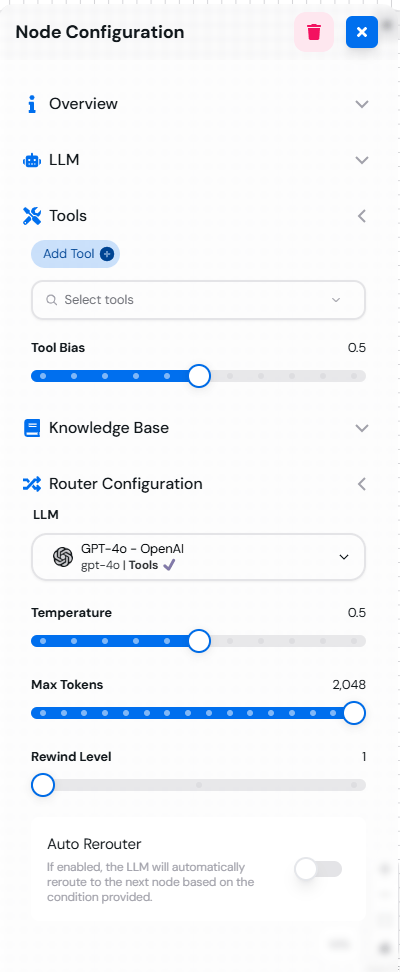 *Node configuration menu showing various customization options available for each node.*
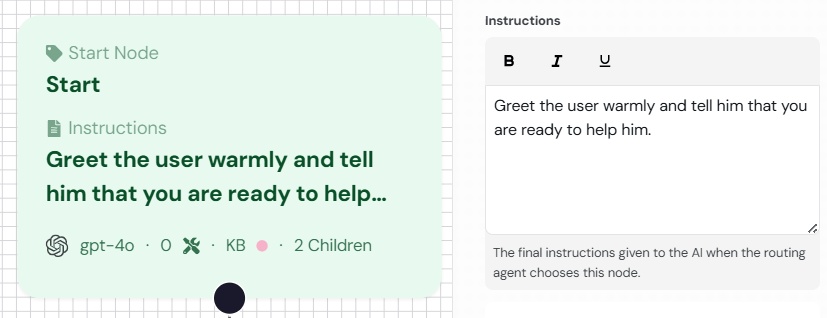 \
*The Start Node configuration menu showing the greeting prompt setup.*
2. **Default Node Example**:
* Process the user's input and provide a response.
\
*The Start Node configuration menu showing the greeting prompt setup.*
2. **Default Node Example**:
* Process the user's input and provide a response.
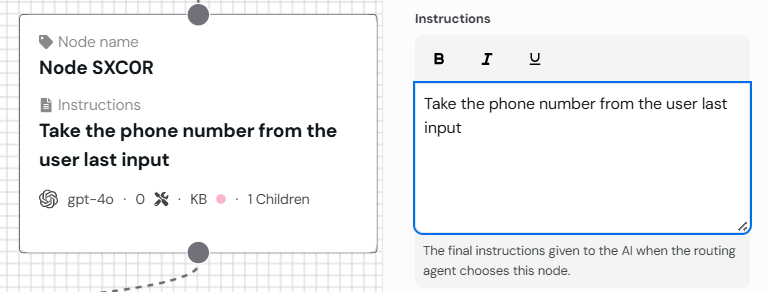 \
*The Default Node configuration menu showing the processing prompt setup.*
3. **End Node Example**:
* Conclude the conversation with a friendly closing message.
\
*The Default Node configuration menu showing the processing prompt setup.*
3. **End Node Example**:
* Conclude the conversation with a friendly closing message.
 \
*The End Node configuration menu showing the closing prompt setup.*
4. **Global Node Example**:
* Define a shared prompt for handling "Help" requests.
\
*The End Node configuration menu showing the closing prompt setup.*
4. **Global Node Example**:
* Define a shared prompt for handling "Help" requests.
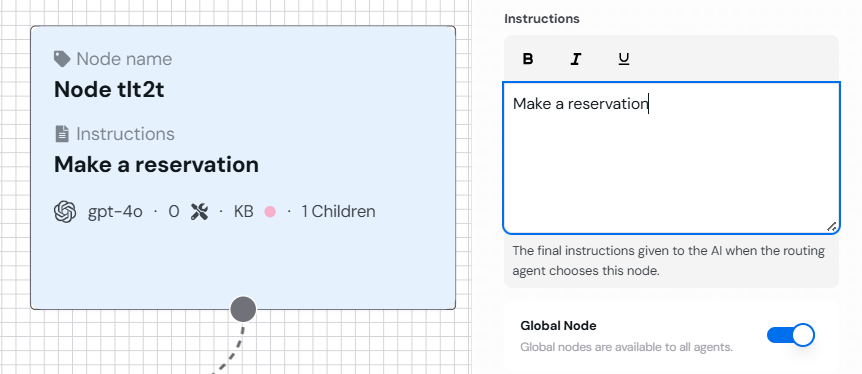 \
*The Global Node configuration menu showing the help prompt setup.*
### Scheduling Assistant Example
Imagine building a scheduling assistant with the following flow:
* The **Start Node** greets the user and identifies their intent.
* A **Default Node** processes the scheduling details using integrated tools.
* A **Global Node** defines shared responses like "Help" or "Cancel."
* The **End Node** finalizes the booking or provides a summary.
***
Ready to create your first node? Explore the next section: [Creating and Managing Nodes](managing-nodes).
\
*The Global Node configuration menu showing the help prompt setup.*
### Scheduling Assistant Example
Imagine building a scheduling assistant with the following flow:
* The **Start Node** greets the user and identifies their intent.
* A **Default Node** processes the scheduling details using integrated tools.
* A **Global Node** defines shared responses like "Help" or "Cancel."
* The **End Node** finalizes the booking or provides a summary.
***
Ready to create your first node? Explore the next section: [Creating and Managing Nodes](managing-nodes).